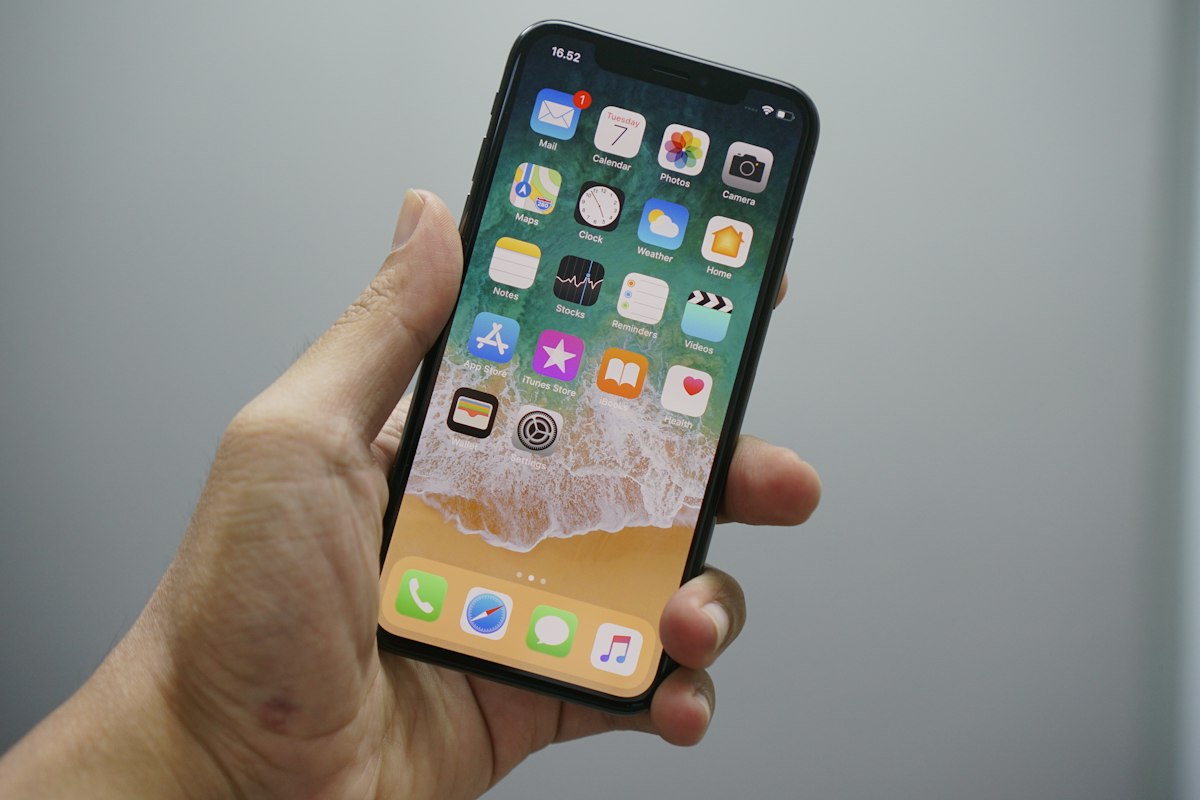
Do Not Disturb is one of the most useful features on the iPhone, and it is also one of the hardest to find if you do not know where Apple has hidden it. When Do Not Disturb is turned on, your iPhone stays quiet, calls go to voicemail, and notifications wait silently instead of lighting up your screen.
This guide shows you exactly where Do Not Disturb lives on your iPhone, how to turn it on and off in several different ways, and how to set it up so the right people can still reach you in an emergency. Once you know the two main locations, you will never have to hunt for it again.
What Is Do Not Disturb on iPhone?
Do Not Disturb is a focus mode that silences calls, alerts, and notifications so your phone does not interrupt you. Your screen stays dark when a message arrives, and the notification waits quietly in Notification Center until you choose to look at it.
Your phone keeps working in the background, your alarms still go off, and nothing is deleted while it is on.
Where Is Do Not Disturb on iPhone?
On modern iPhones, Do Not Disturb lives in two main places, and you can use whichever one is more convenient at the time. The first place is the Control Center, which is best for a quick switch on and off. The second place is the Settings app, under a section called Focus, which is where Apple now groups Do Not Disturb with its other quiet modes.
Both places control the same feature, so turning it on in one place turns it on in the other as well. The moon icon is the sign to look for in both places.
How to Turn On Do Not Disturb From the Control Center
The fastest way to turn on Do Not Disturb is from the Control Center, and it takes only two taps.
Step 1: Open the Control Center
Swipe down from the top right corner of your iPhone screen to open the Control Center. On an iPhone with a Home button, swipe up from the bottom of the screen instead.
Step 2: Find the Focus Button
Look for the button labelled Focus. It has a small moon icon next to it, and it sits among the other quick controls such as Wi-Fi, Bluetooth, and the torch. Tap the Focus button to open the list of focus modes.
Step 3: Tap Do Not Disturb
A list of focus modes will appear, including Do Not Disturb, Sleep, Personal, and Work. Tap Do Not Disturb, and the moon icon will light up to show that it is active.
Step 4: Check the Moon Icon
Check that the moon icon is now lit up, which means Do Not Disturb is turned on. You will also see a small moon icon in the status bar at the top of your screen, next to the time and the battery indicator.
Step 5: Close the Control Center
Swipe up or tap an empty part of the screen to close the Control Center. Your phone is now in quiet mode, and you do not need to do anything else.
How Do You Know Do Not Disturb Is On?
When Do Not Disturb is on, you will see a small moon icon in the status bar at the top of your screen, next to the time and the battery indicator. You will also see the moon on your lock screen, along with the words Do Not Disturb, so you can tell at a glance that your phone is in quiet mode.
If you do not see the moon icon, Do Not Disturb is not running, and your phone will ring and buzz as normal.
How to Turn On Do Not Disturb in Settings
Open the Settings app and scroll down until you see Focus, which has a purple moon icon next to it. Tap Focus, then tap Do Not Disturb at the top of the list.
You will see all of its settings on one screen. Follow these steps to turn it on from Settings:
- Open the Settings app on your iPhone.
- Scroll down and tap Focus, which has a purple moon icon.
- Tap Do Not Disturb at the top of the Focus list.
- Tap the switch next to Do Not Disturb to turn it on or off.
- Scroll down to adjust the schedule, allowed people, and allowed apps.
How to Set a Do Not Disturb Schedule
One of the best things about Do Not Disturb is that you can set it to turn on and off automatically, so you never have to remember. In the Do Not Disturb settings, tap Add Schedule, and you can set the hours when it should be active.
Many people set it to run from ten at night until seven in the morning, so their phone stays quiet while they sleep.
To create a schedule, follow the steps below.
- Open Settings, tap Focus, then tap Do Not Disturb.
- Tap Add Schedule to create a new automatic schedule.
- Set the start time and the end time for when Do Not Disturb should be active.
- Choose which days of the week the schedule should apply to.
- Tap Done to save the schedule, and your iPhone will now switch Do Not Disturb on and off by itself.
If Do Not Disturb turns on by itself, it almost always happens because of a schedule or a focus automation that you set up and forgot about. Check Settings, then Focus, then Do Not Disturb, and look at the schedules listed under Set a Schedule. If there is a schedule you do not want, swipe left on it and tap Delete.

What About Driving Mode and Sleep Focus?
You can also set Do Not Disturb to turn on when you are driving, which is a safety feature that stops notifications from distracting you on the road. In the Do Not Disturb settings, look for the Driving option, or go to Settings, then Focus, then Driving.
When Driving mode is on, anyone who messages you will get an automatic reply saying that you are driving, and you can customise that message to say whatever you like.
How Is Sleep Focus Different?
The Sleep focus is closely related to Do Not Disturb, and it works in a similar way, but it is designed for bedtime. When you set up a sleep schedule in the Health app or the Clock app, your iPhone can turn on Sleep focus automatically at your bedtime.
Sleep focus dims your lock screen, hides notifications, and shows only the time and your next alarm. It is a little stricter than Do Not Disturb, because it is meant to help you wind down and sleep without distractions.
| Feature | Do Not Disturb | Sleep Focus |
|---|---|---|
| Best for | Meetings, study, and quiet time | Bedtime and winding down |
| Screen | Stops lighting up for notifications | Dims the lock screen |
| Turns on | Manually or by schedule | Automatically with a sleep schedule |
| Alarms | Alarms still sound | Shows only the time and next alarm |
Who Can Still Reach You When Do Not Disturb Is On?
Not every call should be silenced, and Do Not Disturb lets you choose who is allowed to reach you even when it is on. In the Do Not Disturb settings, tap People under Allowed Notifications, and you will see a list of your contacts.
Tap Add People to choose the contacts who can call and message you during quiet hours, such as your partner, your parents, or your children. This means you can keep your phone quiet without worrying that you will miss something important from the people who matter most.
How Repeated Calls Work
Repeated calls are another exception worth turning on, because they are often a sign of an emergency. If someone calls you twice within three minutes, the second call will ring through even when Do Not Disturb is on.
This setting is under People in the Do Not Disturb settings, and it is turned on by default on most iPhones. A single missed call can wait, but two calls in quick succession usually mean something urgent.
Which Apps Can Break Through?
Apps can also be allowed to break through Do Not Disturb, which is useful for alarms, messaging apps, and anything you need to hear from. In the Do Not Disturb settings, tap Apps under Allowed Notifications, and choose which apps are allowed to send notifications while quiet mode is on.
Time sensitive notifications from any app can also be allowed, which means urgent alerts such as a delivery or a security warning will still come through even if the app is not on your allowed list.
To set up your allowed people and apps, follow these steps:
- Open Settings, tap Focus, then tap Do Not Disturb.
- Tap People under Allowed Notifications, then tap Add People and select the contacts you want to allow through.
- Go back and tap Apps under Allowed Notifications, then tap Add Apps and select the apps you want to allow through.
- Check the options for repeated calls and time sensitive notifications, and set them the way you want.
How to Use the Lock Screen and Siri
Your lock screen also gives you a quick way to turn Do Not Disturb on and off, which is handy when your phone is locked and you do not want to unlock it. Press and hold on the lock screen to open the customisation view, then tap the Focus button at the bottom of the screen.
You will see the same list of focus modes, and you can tap Do Not Disturb to turn it on or off.
Siri can turn Do Not Disturb on and off for you, which is useful when your hands are busy. Say Hey Siri, turn on Do Not Disturb, and Siri will switch it on straight away. You can also say Hey Siri, turn off Do Not Disturb when you are ready to receive notifications again.
You can ask Siri to turn it on for a set time, such as Hey Siri, turn on Do Not Disturb until seven tonight, and Siri will set a timer for you. This hands free control is especially useful when you are driving or cooking and cannot reach for the screen.
Here are all the quick ways to switch it on or off:
- Control Center: swipe down, tap Focus, then tap Do Not Disturb
- Settings app: open Settings, tap Focus, then tap Do Not Disturb
- Lock screen: press and hold, tap Focus, then tap Do Not Disturb
- Siri: say Hey Siri, turn on Do Not Disturb, or turn it off the same way
Do Not Disturb vs the Silent Switch: What Is the Difference?
Do Not Disturb is different from the silent switch on the side of your iPhone, and knowing the difference will help you use both properly. The silent switch on the left edge of your phone turns off the ringer, so calls and alerts do not make a sound, but your screen still lights up and notifications still appear.
Do Not Disturb goes further, because it stops the screen from lighting up and hides notifications until you choose to look at them.
| Feature | Silent Switch | Do Not Disturb |
|---|---|---|
| Sound | Ringer and alerts are muted | Calls and alerts are silenced |
| Screen | Still lights up for notifications | Stays dark until you check it |
| Notifications | Still appear on the lock screen | Hidden until you turn it off |
| Alarms | Alarms still sound | Alarms still sound |
| Best for | Quick silence in a quiet room | Sleep, meetings, and focused work |
How to Turn Off Do Not Disturb
Turning Do Not Disturb off is just as easy as turning it on. Open the Control Center, tap Focus, then tap Do Not Disturb again, and the moon icon will go dark. You can also turn it off from the Settings app or from the lock screen.
When you turn it off, all the notifications that arrived while it was on will appear on your lock screen and in Notification Center, so you can catch up on anything you missed.
Why Is Do Not Disturb Not Working?
If Do Not Disturb is not working the way you expect, first make sure it is actually turned on, and look for the moon icon in the status bar. Second, check whether an old schedule is turning it on and off at times you did not expect.
Third, check your allowed people and apps, because a notification that comes through during quiet hours usually means that person or app is on the allowed list.
Mistake 1: Forgetting an Old Schedule
An old schedule is the most common cause of a phone that goes quiet at the same time every day. Open the Do Not Disturb settings, look at the schedules, and delete any you no longer need.
Mistake 2: Allowing Too Many People or Apps
If calls keep ringing through, the caller is probably on your allowed list without you realising it. Check the allowed people and apps lists and remove anyone who does not need to break through.
Mistake 3: Forgetting About Repeated Calls
If a caller rings twice within three minutes, the second call will ring through by design. This is the repeated calls safety net, and it can be turned off if you want total silence.
Another possibility is that the call is coming through on a different device, such as an Apple Watch or a Mac, because Do Not Disturb on your iPhone also silences those devices if Share Across Devices is turned on, but a setting on the other device may be overriding it.
What Else Should You Know About Focus Modes?
Share Across Devices is a setting that syncs your focus modes between all of your Apple devices signed in to the same Apple ID. When it is on, turning on Do Not Disturb on your iPhone also turns it on on your iPad, your Mac, and your Apple Watch.
You can turn it off by going to Settings, then Focus, and switching off Share Across Devices, so each device controls its own focus modes.
What Are Focus Filters?
Focus filters are an advanced feature that let Do Not Disturb change what you see inside apps, not just whether notifications arrive. To set one up, go to Settings, then Focus, then Do Not Disturb, scroll down to Focus Filters, tap Add Filter, and choose the app and the rules you want.
What Other Focus Modes Are There?
There are several focus modes besides Do Not Disturb, and they are worth knowing about so you can pick the right one. Sleep focus is for bedtime, Work focus is for office hours, and Personal focus is for time with family and friends.
Each focus mode has its own settings for allowed people and apps. You can switch between them from the Control Center in the same way you switch Do Not Disturb on.
A focus status is a short message that tells people who message you that your notifications are silenced. When Do Not Disturb is on, someone who sends you an iMessage will see a note saying that you have notifications silenced, and they can choose to notify you anyway if it is urgent. You can turn this on or off in the Do Not Disturb settings under Focus Status.

Related: How to Do an iPhone Hard Reset
If Do Not Disturb keeps misbehaving even after you have checked the settings, a restart of your iPhone can clear the problem. Restarting refreshes the focus system and clears any temporary glitch that might be keeping the moon icon on or off when it should not be. This guide to doing a hard reset on your iPhone walks you through the steps for every model, and it is a good first step before you start resetting settings or contacting support.
You can also use Do Not Disturb as part of a daily routine. Many people turn it on during work hours so they can concentrate without constant pings, and let it turn off automatically at the end of the day.
Set it up once, with the right schedule and the right allowed people, and it will work quietly in the background.
Related: How to Clear History on iPhone 15
Keeping your iPhone quiet is only one part of staying in control of your device, and your privacy settings matter just as much. Clearing your history regularly is a simple habit that keeps your phone tidy, and this step by step guide to clearing history on the iPhone 15 shows you how to do it in a few taps.
Frequently Asked Questions
1. Where is Do Not Disturb on iPhone?
Do Not Disturb is in the Control Center under the Focus button, and in the Settings app under Focus.
2. Why is Do Not Disturb not silencing my calls?
The caller is probably on your allowed people list, in your favourites, or calling for a second time within three minutes. Check the allowed people list and the repeated calls setting.
3. Does Do Not Disturb block alarms?
No, alarms and timers still sound when Do Not Disturb is on, so you can use it overnight safely.
4. Can I schedule Do Not Disturb to turn on automatically?
Yes, open Settings, tap Focus, then tap Do Not Disturb, and tap Add Schedule to set the times and days.
5. Will people know I have Do Not Disturb on?
If Focus Status is turned on, people who send you an iMessage will see that your notifications are silenced. You can turn it off in the settings if you prefer privacy.
Conclusion: Set It Up Once and Enjoy the Quiet
To sum up, Do Not Disturb lives in the Control Center under the Focus button and in the Settings app under Focus, and both places control the same feature. Use the Control Center for a quick switch on and off, and use Settings to set up schedules, choose the people and apps that can break through, and link it to your lock screen.
Remember that Do Not Disturb silences notifications and stops your screen from lighting up, which is more than the silent switch on its own. Set it up once with a sensible schedule and a short allowed list, and your iPhone will stay quiet when you need it to be.
Key Takeaways
- Do Not Disturb is in the Control Center under Focus and in Settings under Focus
- The moon icon in the status bar shows that quiet mode is active
- A schedule can turn it on and off automatically, such as overnight
- Allowed people and apps can still reach you, and repeated calls ring through as a safety net
- Alarms still sound, and nothing is deleted while it is on
- It silences more than the silent switch, because it also keeps the screen dark