The flashlight on an iPhone is very bright and very useful. It can also turn on at the worst time, often by accident in a pocket or a bag.
When the light stays on, it drains the battery fast and it can heat up the phone. It can also shine into your eyes or disturb people around you in a dark room.
The good news is that turning it off takes only a few seconds. You can do it from the Lock Screen, from Control Center, with Siri, or with the Action Button on newer models.
This guide shows you every method, one step at a time. It also explains what to do when the flashlight button is missing or the light will not turn off.
You do not need any extra app for any of these steps. Everything you need is already built into your iPhone.
Method 1: Turn Off the Flashlight in Control Center
Control Center is the fastest and most reliable way to turn off the flashlight. It works from almost any screen, including the Lock Screen and inside apps.
If you only learn one method, learn this one. It works on every modern iPhone, and it works even when the Lock Screen button is not there.
Step 1: Open Control Center.
On an iPhone with Face ID, swipe down from the top right corner of the screen. Start your finger near the very top edge, just above the battery icon, and pull down.
On an iPhone with a Home button, such as the iPhone SE, swipe up from the bottom edge of the screen. Start below the screen edge and pull up in one smooth motion.
If nothing happens, try again with a slightly longer swipe. Many people start the swipe too far from the edge, and that is the most common reason the panel does not open.
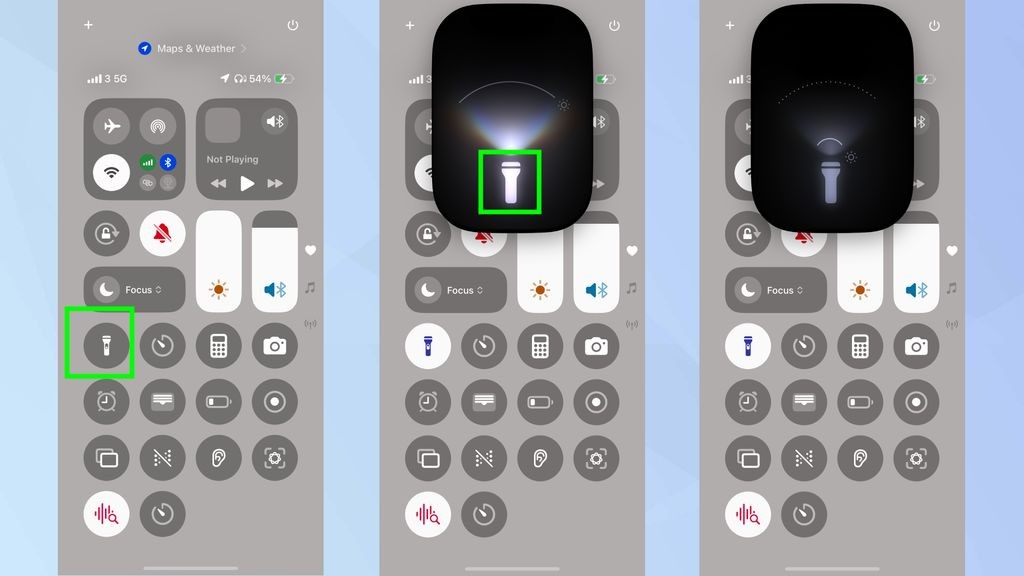
Step 2: Find the flashlight button.
Look for the small flashlight icon in the grid of controls. While the flashlight is on, the button looks highlighted or filled in, usually in white or blue depending on your iOS version.
Its exact position depends on how your Control Center is arranged. On many iPhones it sits in the lower left area, near the timer, calculator, and camera buttons.
If you do not see it at first, look carefully through the whole panel. On newer iOS versions, Control Center can have more than one page, so swipe sideways to check the other pages.
Step 3: Tap the flashlight button once.
Tap the highlighted flashlight icon a single time. The light on the back of the phone should go out at once, and the button should return to its normal dim look.
Do not press and hold the button here. A long press opens the brightness slider instead of turning the light off, which can be confusing if you are in a hurry.
If the light does not go out, tap the button once more and wait a second. A single firm tap is all it needs, and fast double taps can sometimes turn it back on again.
Step 4: Close Control Center.
Swipe up from the bottom of the screen to close Control Center on a Face ID iPhone. On a Home button iPhone, press the Home button or tap anywhere on the empty area.
Check the back of the phone to make sure the light is really off. The LED sits next to the camera lenses, and it is easy to see in a dark room.
If the light is still on, open Control Center again and repeat the tap. If it still will not turn off, move on to the troubleshooting section near the end of this guide.
Related: how to turn off blue light on iPhone 17
Method 2: Turn Off the Flashlight From the Lock Screen
The Lock Screen is the quickest method when your phone is locked. You do not need to enter your passcode, and you do not need to unlock the phone at all.
This is the method most people use by accident to turn the light on. A long press on the Lock Screen button is all it takes, so it is easy to trigger in a pocket.
Step 1: Wake up the Lock Screen.
Press the side button once, tap the screen, or simply pick up the phone. The Lock Screen should light up and show the time and your notifications.
You do not need to unlock the phone. Stay on the Lock Screen and do not swipe up or enter your passcode yet.
If the screen stays dark, press the side button again. A phone with a dead battery or a very low battery may not wake up until it has charged for a few minutes.
Step 2: Find the flashlight button in the bottom left corner.
Look at the bottom left of the Lock Screen. You should see a small flashlight icon in a round button, with the camera icon in the bottom right corner.
On iOS 18 and later, you can change or remove these buttons. If the flashlight button is not there, someone may have replaced it with a different control, and you should use Control Center instead.
The button is small, so look closely in bright sunlight. It is easier to see indoors or in the shade, where the screen is not washed out by glare.
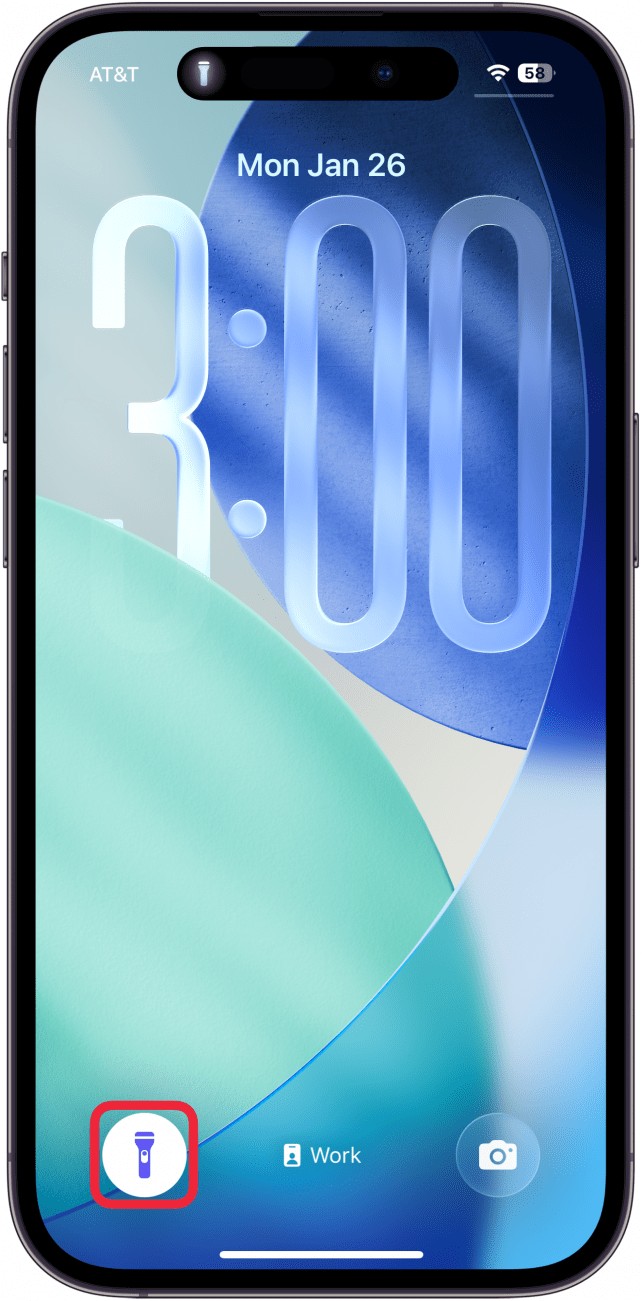
Step 3: Press and hold the flashlight button.
Press the flashlight button and hold your finger on it for about a second. You should feel a small vibration, which is the phone confirming the press.
Let go once you feel the vibration and see the light go out. A quick tap is not enough on the Lock Screen, because Apple made it a press and hold to stop accidental taps.
If you lift your finger too early, the light may stay on. Press and hold again, a little longer this time, until you feel the vibration.
Step 4: Check that the light is off.
Look at the back of the phone or watch for the glow to disappear from the wall or surface in front of you. The Lock Screen button should also look dim again.
If the light is still on, unlock the phone and use Control Center. That method uses a simple tap, and it works even when the Lock Screen button is being stubborn.
Method 3: Turn Off the Flashlight With Siri
Siri is the best option when your hands are full or the phone is face down on a table. You do not need to touch the screen at all.
This method works on any iPhone with Siri turned on. It is also helpful for people who find the small on screen buttons hard to tap.
Step 1: Get Siri listening.
Say Hey Siri, or press and hold the side button until Siri appears on the screen. On older iPhones with a Home button, press and hold the Home button instead.
Wait for the Siri wave or the listening screen to show. If Siri does not appear, check that you are speaking clearly and that the phone is not on silent with Siri disabled.
You can also say Hey Siri while the phone is locked, as long as you have allowed Siri on the Lock Screen in Settings.
Step 2: Ask Siri to turn off the flashlight.
Say Turn off the flashlight, or say Switch off my flashlight. Use a clear, normal voice, and keep the command short.
Siri should reply that the flashlight is off, and the light should go out at once. You should also see a small confirmation on the screen.
If Siri asks you to repeat yourself, try again with the same words. Background noise from a television or a busy street can make voice commands harder to hear.
Step 3: Check the result.
Glance at the back of the phone to confirm the light is off. If Siri says it is off but the light is still shining, use Control Center to turn it off by hand.
Voice control can fail when the internet connection is poor, because Siri sends your words to Apple to understand them. In that case, the manual methods in this guide are a better choice.
Method 4: Turn Off the Flashlight With the Action Button
The Action Button is a physical button on the iPhone 15 Pro, iPhone 15 Pro Max, and later Pro models. It replaces the old mute switch above the volume buttons.
You can set the Action Button to control the flashlight. Once it is set up, one press turns the light on and another press turns it off.
Step 1: Check that the Action Button is set to flashlight.
Open Settings, then tap Action Button. Look at the icon shown on the screen and swipe through the options until you see the flashlight.
If the Action Button is set to something else, such as Silent Mode or Camera, it will not control the flashlight. Change it to Flashlight if you want this shortcut.
This setup only needs to be done once. After that, the button keeps the flashlight job until you change it again.
Step 2: Press the Action Button once.
Press the button firmly and let go. The flashlight should turn off, and you should feel a small vibration as confirmation.
Do not hold the button down for a long time. A quick press is enough, and holding it may not do anything extra.
If nothing happens, press it again and check the screen. Some cases and covers can make the button harder to press, so press a little firmer.
Step 3: Confirm the light is off.
Turn the phone over and look at the camera area. The LED should be dark, and there should be no glow on nearby surfaces.
If the light stays on, the Action Button may not be set to flashlight after all. Open Settings and check the assignment again, or use Control Center instead.
Method 5: Add the Flashlight Button Back to Control Center
Sometimes the real problem is not the flashlight, but the missing button. If the flashlight icon is gone from Control Center, you cannot tap it to turn the light off.
This can happen after an iOS update or after someone rearranges the controls. Adding it back takes less than a minute, and it fixes the problem for good.
Step 1: Open Settings.
Find the Settings app on your Home Screen and tap it. The icon looks like a grey gear, and it is usually on the first page or in the App Library.
Scroll down a little if you do not see the option you need. Settings has a long list, and Control Center sits in the upper part of it.
Step 2: Open the Control Center settings.
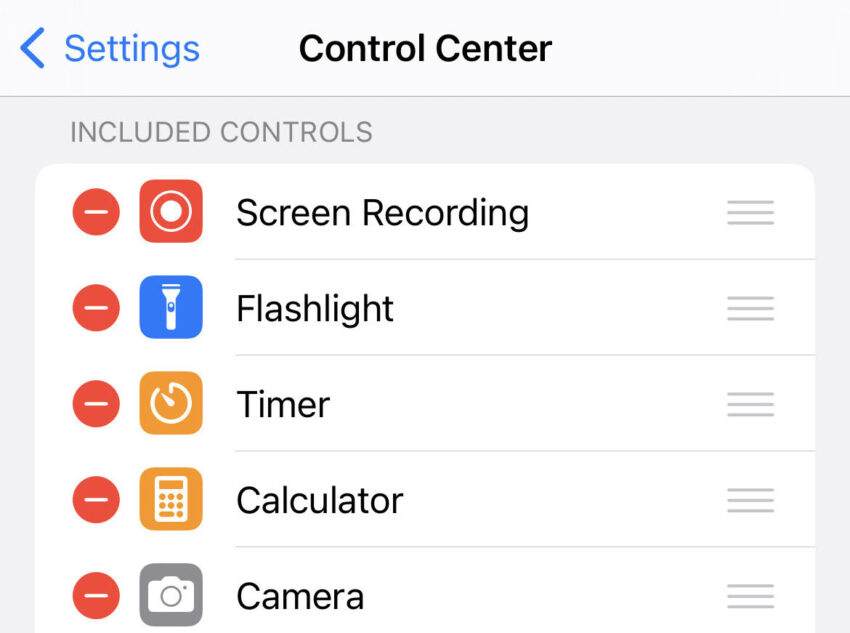
Tap Control Center in the Settings list. On older iOS versions, this screen shows a list of controls with green plus signs and red minus signs.
On iOS 18 and later, you can also edit Control Center directly. Long press on an empty space in Control Center, then tap Add a Control when the option appears.
Either route leads to the same result, so use whichever one your iPhone shows. The names may differ slightly between iOS versions.
Step 3: Add Flashlight to the included controls.
Find Flashlight in the list of more controls and tap the green plus sign next to it. The flashlight should move up into your included controls.
If Flashlight is already in the included list, it is already in Control Center. In that case, the button may just be on a different Control Center page, so swipe sideways to find it.
You can also drag the controls to rearrange them. Put the flashlight near the top so it is easy to find next time you need it in a hurry.

Step 4: Test the button.
Open Control Center and look for the flashlight icon in its new spot. Tap it once to turn the light on, then tap it again to turn it off.
Testing it now saves you trouble later. You will know exactly where the button is before you need it in the dark.
Method 6: Adjust the Flashlight Brightness
The iPhone flashlight has more than one brightness level. If the light seems too bright or too dim, you can change it without turning it off and on again.
This is useful at night when a full brightness light is too strong. A lower level still helps you see, and it uses less battery.
Step 1: Open Control Center and find the flashlight button.
Use the swipe you learned in Method 1. Find the flashlight icon and make sure you can see it clearly before you touch it.
Step 2: Press and hold the flashlight button.
Keep your finger on the button for a second or two. A vertical slider should appear, showing the brightness levels from low at the bottom to high at the top.
On iPhones with Dynamic Island, you can also tap the flashlight icon in the Dynamic Island area to see the same brightness control.
Step 3: Drag the slider to the level you want.
Slide your finger up for a brighter light or down for a dimmer one. The light changes as you move, so you can see the result right away.
Release your finger when the brightness feels right. The phone remembers this level, and it will use it the next time you turn the flashlight on.
Tips to Stop the Flashlight Turning On by Accident
The most common complaint is not turning the flashlight off, but finding it on again later. A few small habits can stop most accidental switch ons.
Keep the phone in a pocket with the screen facing your leg, not facing out. The Lock Screen button is less likely to get pressed when it faces your body.
Use a case that covers the screen edges slightly. A raised edge makes it harder for the Lock Screen button to be pressed by fabric or other objects in a bag.
Turn off Raise to Wake if the screen keeps lighting up in your pocket. You can find this in Settings, then Display and Brightness, and switch off Raise to Wake.
Consider removing the flashlight button from the Lock Screen if you never use it. On iOS 18 and later, long press the Lock Screen, tap Customize, then Lock Screen, and tap the minus icon on the flashlight button.
Check the flashlight before putting the phone away at night. A quick glance at the back of the phone takes one second and can save a lot of battery by morning.
Related: how to save battery on iPhone 17
Troubleshooting: When the Flashlight Will Not Turn Off
Sometimes the flashlight refuses to turn off even after you tap the button. Try these fixes in order, starting with the simplest one.
First, close the Camera app. The camera and the flashlight share the same LED, so an open Camera app can keep the light on or block the controls.
Swipe up from the bottom of the screen to see your open apps, then swipe the Camera app away to close it. Then try the flashlight button again.
Next, restart your iPhone. A restart clears small software glitches that can freeze the flashlight controls, and it fixes most stuck flashlight problems.
Press and hold the side button and one volume button together, then slide to power off. Wait about thirty seconds, then press and hold the side button until the Apple logo appears.
If the light is still stuck on after a restart, check for an iOS update. Go to Settings, then General, then Software Update, and install any update that is waiting.
A very hot phone can also cause flashlight problems. If the phone feels hot, turn off the flashlight, close heavy apps, and let the phone cool down for a few minutes.
If nothing works, the problem may be hardware. Contact Apple Support or visit an Apple Store, especially if the phone has been dropped or exposed to water.
Frequently Asked Questions
Why does my iPhone flashlight turn on by itself?
The most common cause is the Lock Screen button being pressed in a pocket or bag. A long press on the bottom left button turns the light on, and fabric or keys can do that without you noticing.
A case that presses the screen can cause the same problem. Try removing the case for a day and see if the light still turns on by itself.
Why is the flashlight button missing from Control Center?
The button may have been removed during an update or while rearranging controls. Open Settings, then Control Center, and add Flashlight back to the included controls.
On iOS 18 and later, you can also long press in Control Center and tap Add a Control. Search for Flashlight and add it from there.
Why is the flashlight button greyed out?
A greyed out button usually means the Camera app is using the LED. Close the Camera app completely and try again.
It can also happen when the phone is very hot or the battery is very low. Let the phone cool down or charge for a while, then try the button again.
Can I turn off the flashlight without unlocking my iPhone?
Yes, you can. Press and hold the flashlight button on the Lock Screen, or open Control Center from the Lock Screen and tap the flashlight icon.
You can also ask Siri to turn it off while the phone is locked. None of these methods need your passcode.
Does the flashlight drain the battery fast?
Yes, the flashlight uses a lot of power for a small light. Leaving it on for an hour can use a large part of your battery, especially on an older iPhone.
Turn it off as soon as you do not need it. Lowering the brightness also helps the battery last longer.
Can I turn off the flashlight with a swipe?
Some people use a small swipe to the left on the Lock Screen, as if opening the camera, then release before the camera opens. This can turn the light off, but it does not work on every iPhone or every iOS version.
Control Center is more reliable than this trick. Use the swipe trick only as a backup when the buttons are not responding.
Does the flashlight turn off by itself?
No, the iPhone flashlight does not have a built in timer. It stays on until you turn it off, or until the battery runs out.
This is why it is worth checking the phone before you put it in a pocket. A light left on overnight can leave you with a dead battery in the morning.
Will turning off the flashlight affect the camera flash?
No, the two are separate settings. Turning off the flashlight does not change your camera flash setting for photos.
The camera flash is controlled inside the Camera app. You can set it to on, off, or auto there, and it will not affect the flashlight.
Related: how to turn off iPhone 17
Closing
Turning off the flashlight on an iPhone is a small skill, but it saves battery and avoids awkward moments. Control Center is the method to remember, and the Lock Screen is the fastest one when the phone is locked.
If the button is missing, add it back in Settings so it is there next time. If the light ever gets stuck, close the Camera app and restart the phone before worrying about a repair.
Now you know every way to turn the light off. Pick the method that fits the moment, and your iPhone will be dark again in seconds.