
The Clock app is one of the apps that comes built into every iPhone, and for many people, its icon sits on the Home Screen from the day the phone is first switched on. Most of us use the Clock app every day, whether it is for an alarm that wakes us up, a timer that tells us when dinner is ready, or a stopwatch that times a run.
But there are also plenty of people who never open it, because they use a different alarm app, or because they check the time on their lock screen and their Apple Watch instead. If you are one of those people, the Clock icon is just taking up space on your Home Screen, and you may be wondering how to get rid of it.
This guide shows you every way to remove the Clock icon from your iPhone, step by step, and explains what each method actually does.
What Does Removing an Icon Mean on an iPhone?
Before you start, it is important to understand what removing an icon means on an iPhone, because Apple gives you three different options, and they do very different things.
The first option is to remove the icon from the Home Screen only, which hides it from view but keeps the app on your phone, so you can still find it in the App Library and open it whenever you want.
The second option is to delete the app completely, which removes it from your phone and frees up a small amount of storage, although the Clock app is tiny and deleting it saves almost no space.
The third option is to move the icon into a folder or onto a different Home Screen page, which keeps it available but gets it out of your way. Each option suits a different need, and this guide covers all three, so you can pick the one that fits how you actually use your phone.
| Option | What Happens | Best For |
|---|---|---|
| Remove from Home Screen | Icon hidden, app stays installed | Hiding it safely |
| Delete App | App removed from the phone | Removing it completely |
| Move to a folder or page | Icon out of sight but one tap away | Keeping it available |
Will Deleting the Clock App Delete My Alarms?
It is also worth knowing that deleting the Clock app does not delete your alarms. That surprises a lot of people, and it is a common worry. Your alarms are stored in the Clock app, but when you delete the app, the alarms stay switched on in the background and will still go off at the set time.
Apple designed it this way deliberately, so that nobody misses an important alarm because they tidied up their Home Screen. If you want your alarms to stop, you need to open the Clock app and switch each one off before you delete the app, or ask Siri to turn off all of your alarms.
Keep that in mind before you delete anything, especially if you rely on your iPhone to wake you up in the morning.
How to Remove the Clock Icon from Your Home Screen
Removing the icon takes less than a minute. Follow the steps below in order.
Step 1: Find the Clock Icon on Your Home Screen
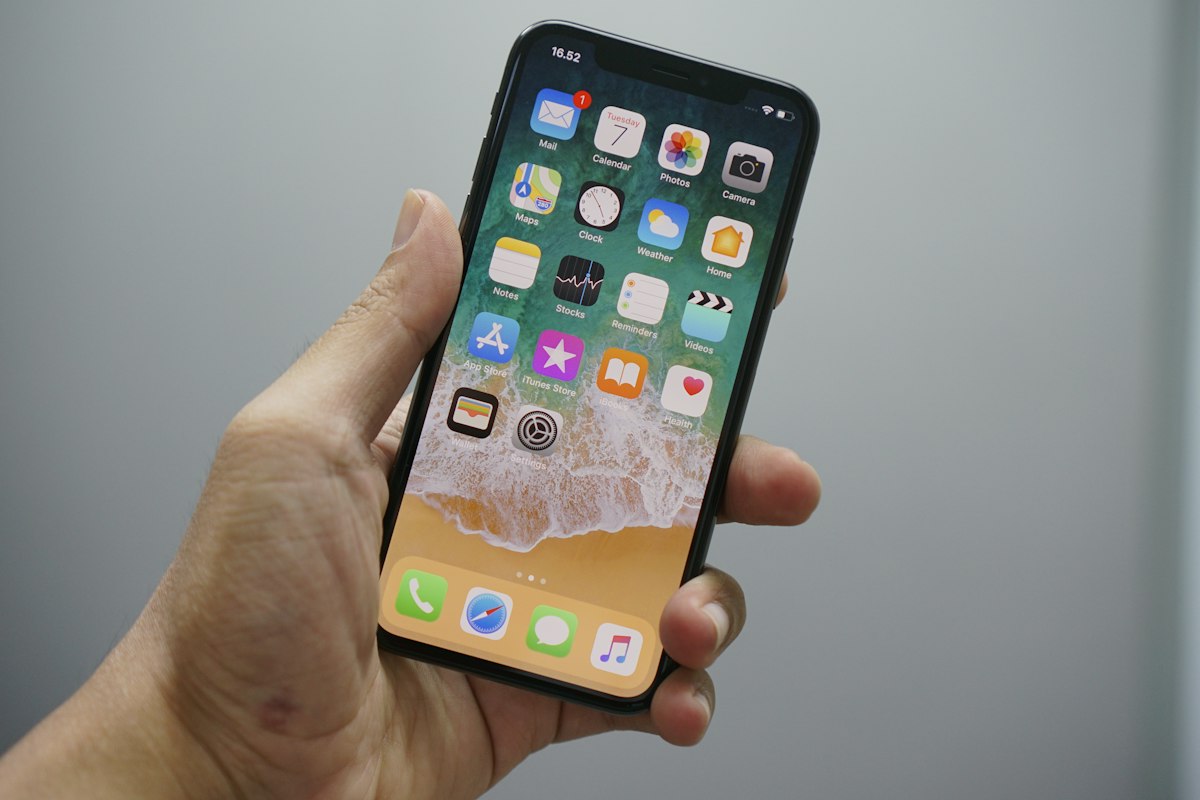
Unlock your iPhone and look for the Clock icon, which is a white square with a black clock face showing the current time. The hands on the icon actually move, so it shows the real time, which makes it easy to spot.
If you cannot see it on your first Home Screen page, swipe left to check the other pages, because the icon may have been moved at some point. You can also find it quickly by swiping down on the Home Screen to open Search, typing Clock, and looking at where the app appears in the results.
Once you have found the icon, you are ready to remove it, and the whole process takes less than a minute.
Step 2: Press and Hold the Clock Icon Until the Menu Appears
Touch the Clock icon and hold your finger on it for a second or two, until a small menu pops up. This menu is called the quick actions menu, and it shows shortcuts such as Create Alarm, Start Timer, and Start Stopwatch, along with the option to edit the Home Screen.
If you hold the icon for too long, the icons on the screen will start to jiggle, which is the old way of editing the Home Screen, and you can still use that if you prefer. On newer versions of iOS, the menu appears first, and you need to tap Edit Home Screen at the bottom of the menu to make the icons jiggle.
Either way, you will end up with the icons in editing mode, which is where you remove them.
Step 3: Tap Remove App and Choose Remove from Home Screen
Once the icons are jiggling, tap the small minus sign that appears in the top left corner of the Clock icon. A menu will appear with two options: Delete App and Remove from Home Screen.
If you only want to hide the icon, tap Remove from Home Screen. The icon will disappear from your Home Screen straight away, but the Clock app will still be installed on your phone, and you will find it in the App Library, which you reach by swiping left past your last Home Screen page.
This is the safest option, because you can put the icon back in a few seconds if you change your mind, and all of your alarms, timers, and world clocks stay exactly as they were.
Step 4: Understand What Happens If You Choose Delete App Instead
If you tap Delete App instead of Remove from Home Screen, your iPhone will ask you to confirm, and then it will remove the Clock app from your phone completely. The icon will disappear from the Home Screen and from the App Library, and the app will no longer appear in your search results.
As mentioned earlier, your alarms will still go off, because Apple keeps them running even when the app is deleted, but you will not be able to see, edit, or add alarms until you reinstall the app.
Deleting the Clock app saves very little storage, usually less than a few megabytes, so there is no practical benefit to deleting it rather than hiding it, unless you are determined to have it completely gone. For most people, Remove from Home Screen is the better choice.
How Do You Get the Clock Icon Back?
If you removed the Clock icon from the Home Screen and later decide you want it back, getting it back takes only a few seconds. Swipe left past your last Home Screen page until you reach the App Library, which is a screen that groups all of your apps into categories.
Find the Clock app, either by looking in the Utilities category or by typing Clock in the search bar at the top of the App Library. Press and hold the Clock icon, and then tap Add to Home Screen in the menu that appears.
The icon will reappear on your Home Screen, usually on the first page with free space, and your alarms and settings will be exactly as you left them. You can then drag the icon to wherever you want it to sit.
Can You Move the Clock Icon Instead of Removing It?
Yes, and for many people moving it is the best compromise of all. You keep the app within reach, but it stops cluttering the part of the Home Screen you look at every day.
Option 1: Move the Clock Icon into a Folder
If you want the Clock icon out of sight but still easy to reach, a folder is a good compromise. Press and hold the Clock icon until the icons start to jiggle, and then drag it on top of another app icon, such as the Calendar or the Calculator.
Your iPhone will create a folder containing both apps, and you can rename the folder to something like Utilities or Tools. Drag any other apps you rarely use into the same folder, and your Home Screen will look much tidier without you having to delete or hide anything.
To take the Clock icon out of the folder later, open the folder, press and hold the icon, and drag it back onto the Home Screen. Folders are the best option for people who like a clean Home Screen but still want every app within one tap.
Option 2: Move the Clock Icon to a Different Home Screen Page
Another simple option is to move the Clock icon to a Home Screen page you rarely look at, such as the last page. Press and hold the icon until it starts to jiggle, then drag it to the right edge of the screen and hold it there, and your iPhone will flip to the next page.
Drop the icon there, and it will sit on that page, out of your daily view but still available. You can also move a whole page of rarely used apps at once: press and hold an empty area of the Home Screen, tap the dots at the bottom of the screen, and you will see small previews of all your pages, which you can hide, show, or reorder.
Hiding a page is another way to remove the Clock icon from view without deleting anything, and you can bring the page back just as easily.
Option 3: Hide the Clock Icon Using Screen Time Restrictions
If you are setting up an iPhone for a child, or you want to stop yourself from opening the Clock app, you can hide it with Screen Time. Open the Settings app, tap Screen Time, and then tap Content and Privacy Restrictions.
Turn on the restrictions, and then tap Allowed Apps, where you will see a list of built-in apps with switches beside them. Turn off the switch next to Clock, and the icon will disappear from the Home Screen.
This method hides the app completely, including from the App Library, until you turn the switch back on. It is a useful tool for parents who want to simplify a child's phone, but remember that hiding the app this way does not turn off any alarms that are already set, so check the alarms before you hide it.
How Do You Open the Clock App Without Its Icon?
Once the Clock icon is off your Home Screen, you can still open the app any time you need it, and the quickest way is with Siri. Press and hold the side button, or say Hey Siri, and then say Open Clock, and the app will open straight away.
You can also say Set an alarm for 7 AM, or Start a timer for ten minutes, and Siri will do it without you ever opening the app. The other quick way is to swipe down on the Home Screen to open Search, type Clock, and tap the app in the results.
You can even add a Clock widget to your Home Screen or your lock screen, which shows the time and gives you a shortcut into the app, without the app icon itself taking up space.
What About the Clock Widget?
Many people who remove the Clock icon forget that they also have a Clock widget on their Home Screen or on their lock screen, and the widget keeps showing the time in a large box. To remove a widget, press and hold it until a menu appears, and then tap Remove Widget, and confirm by tapping Remove.
On the lock screen, press and hold the lock screen, tap Customise, and then tap the widget area to remove the Clock widget from there. Removing the widget does not affect your alarms either, and it frees up a good amount of space on your Home Screen, which is often the real reason people wanted the Clock icon gone in the first place.
If you like the look of the widget but not the icon, you can keep the widget and remove the icon, and your Home Screen will still look tidy.
Should You Turn Off Your Alarms Before Deleting the Clock App?
Yes, if you have decided to delete the Clock app completely rather than just hiding it, open the app first and go to the Alarm tab at the bottom of the screen. You will see a list of every alarm you have ever set, including ones you set months ago and forgot about.
Switch off every alarm you no longer need by tapping the green switch next to it, and delete the ones you will never use again by swiping left on them and tapping Delete. Pay special attention to alarms labelled Weekdays or Every day, because those repeat, and a forgotten daily alarm will keep ringing every morning even after the app is deleted.
Once the list is clean, you can delete the app knowing that nothing unexpected will go off. You can also ask Siri to turn off all of your alarms in one go, which is quicker than switching them off one by one.

How Do You Reinstall the Clock App?
If you deleted the Clock app and later want it back, open the App Store, tap the search icon, and type Clock. Look for the app published by Apple, which has the familiar black and white clock face as its icon, and tap the download button, which looks like a cloud with an arrow.
The app will download and install in a few seconds, and it is free, as are all of Apple's built-in apps. Once it is installed, the icon will appear on your Home Screen, and you can open it to set up your alarms again.
If you cannot find the app in the App Store, check that you are signed in with the right Apple ID, and check that Screen Time restrictions are not hiding it, because a hidden app will not appear in search results either.
Related: How to Do an iPhone Hard Reset
If removing the icon does not work as expected, or your Home Screen starts behaving strangely, a hard reset is a safe way to restart your iPhone without losing any data. This guide walks you through the button combination for your model, step by step.
How Do You Organise Your Home Screen After Removing the Icon?
Once the Clock icon is gone, your remaining icons will shift to fill the gap, and your Home Screen may look slightly different from what you are used to. Take a moment to drag your most used apps into the positions that suit your thumb, with the apps you open most often at the bottom of the screen, near the dock.
You can also use the App Library to keep rarely used apps off the Home Screen entirely: go to Settings, then Home Screen, and choose whether newly downloaded apps appear on the Home Screen or only in the App Library.
Setting new apps to go to the App Library only is the best way to stop your Home Screen from filling up again, and it means you will only ever see the apps you actually chose to keep there.
Here are three quick habits that keep a Home Screen tidy for good.
- Set new downloads to go to the App Library only.
- Put rarely used apps in a folder named Utilities.
- Review your Home Screen once a month and remove icons you never tap.
Can You Hide the Clock Icon on an Apple Watch Too?
If you also use an Apple Watch, the Clock app has an icon there too, and you may want to tidy that up as well. You cannot delete the Clock app from an Apple Watch, because it is a core part of watchOS, but you can rearrange the apps in the watch app grid so that the Clock icon sits somewhere less prominent.
Press the Digital Crown to see the app grid, press and hold the Clock icon until it starts to jiggle, and then drag it to the edge of the grid. You can also change the watch app layout to a list view, which makes it easier to scroll past the apps you never use.
The watch face itself also shows the time, so the Clock app icon is rarely needed on the watch, and moving it out of the way keeps the grid focused on the apps you actually open.

Related: How to Check YouTube Watch History on iPhone
Tidying up your Home Screen often goes hand in hand with tidying up the apps you use every day, and your watch history is another place where a quick clean-up makes your phone feel fresh and private.
Frequently Asked Questions
1. Does deleting the Clock app delete my alarms?
No, the alarms stay active even after the app is deleted, so switch them off in the app before you delete it if you do not want them to ring.
2. Can I delete the Clock app at all?
Yes, on iOS 10 and later, Apple lets you delete most built-in apps, including Clock, and reinstall them free from the App Store.
3. How do I get the icon back after removing it?
Find the app in the App Library, press and hold it, and tap Add to Home Screen, and the icon will reappear on your Home Screen.
4. Does removing the icon affect the time shown on the lock screen?
No, the lock screen clock is part of iOS and it stays exactly the same, whether the Clock app icon is on your Home Screen or not.
5. Can I hide the Clock icon without deleting the app?
Yes, using Remove from Home Screen, a folder, a hidden Home Screen page, or Screen Time restrictions, and every one of those options keeps the app installed.
Conclusion: Hide It, Move It, or Delete It, the Choice Is Yours
Removing the Clock icon from your iPhone is quick and easy, and you have three choices depending on what you want. To hide the icon but keep the app, press and hold it, tap the minus sign, and choose Remove from Home Screen, and you will find the app in the App Library whenever you need it.
To delete the app completely, choose Delete App instead, but remember to switch off your alarms first, because they will keep ringing even after the app is gone. To keep the app but get it out of the way, move it into a folder or onto a later Home Screen page, or hide it with Screen Time.
Whichever option you choose, you can still open the Clock app with Siri or Search, and you can get the icon back in seconds from the App Library or the App Store. Your Home Screen will look cleaner, your alarms will still work, and you will not have lost anything at all.
Key Takeaways
- Remove from Home Screen hides the icon and keeps the app, while Delete App removes the app completely.
- Your alarms keep ringing even after the Clock app is deleted, so switch them off first.
- You can get the icon back in seconds from the App Library or the App Store.
- Folders, later Home Screen pages, and Screen Time all hide the icon without deleting anything.
- Siri and Search open the Clock app even when its icon is gone.
- Do not forget the Clock widget, which needs to be removed separately.
Related: How to Clear History on iPhone 15
If you are tidying up your iPhone and want it to feel fresh and private, clearing your browsing history is another quick job worth doing while you are in a cleaning mood.