Select All is one of the most useful commands in Microsoft Word, and also one of the least understood. With a single shortcut, you can highlight an entire document in less than a second, ready to copy, delete, reformat, or move. It is a small skill that saves a surprising amount of time.
Most people learn to select text by dragging the mouse across the page. That works fine for a sentence or a paragraph, but it becomes slow and clumsy for a long document. Dragging through twenty pages is tedious, and it is easy to miss the first line or overshoot the last one. Select All solves that problem completely.
This guide shows you every way to select all text in Word, on Windows, on a Mac, and on phones and tablets. You will learn the keyboard shortcuts, the menu method, and the tricks for selecting only part of a document when you do not want everything. You will also learn what to do with your selection once you have it, and how to fix it when things go wrong.
Whether you are a student reformatting an essay, an office worker copying a report, or a writer moving a chapter to a new file, this guide will help you work faster. The steps are simple, and you can practise each one in your own document as you read.
What Select All Does in Microsoft Word
Select All highlights every piece of content in the main body of your document. That includes all of your text, headings, lists, tables, and pictures that sit inside the text. The selected text appears with a grey or blue background, which shows you exactly what will be affected by your next action.
It is important to know what Select All does not include. Headers, footers, footnotes, endnotes, and text boxes are not part of the main body, so they are not selected by the standard Select All command. If you need to change a header, you must click inside it first and then select all there. We will cover that trick later in this guide.
Select All also does not change anything by itself. Highlighting text is only the first step. What happens next depends on what you do: press Delete to remove it, press Copy to copy it, or change the font to reformat it. The selection is just a way of telling Word which text your next command should affect.
Think of Select All as picking up the whole document at once. Once you have it in your hands, you can do almost anything with it, from changing the font size to pasting it into an email. It is the starting point for dozens of editing jobs.
What You Need Before You Start
You need Microsoft Word installed on your computer, phone, or tablet, and a document open in it. You can practise in any document, even a new blank one with a few lines of test text. A longer document is better for practice, because it shows you how much faster Select All is than dragging with the mouse.
A physical keyboard makes Select All much easier, because the main method is a keyboard shortcut. If you are on a laptop or a desktop computer, you already have what you need. If you are on a tablet with a keyboard attached, the shortcuts work the same way as on a computer.
Make a copy of your document before you practise deleting or reformatting. Select All followed by Delete removes everything in one keypress, and while you can undo it, practising on a copy is safer. Save your copy with a different name, such as Practice Copy, so you never mix it up with the original.
Finally, make sure you know how to undo a mistake. The Undo shortcut is Ctrl and Z on Windows, or Command and Z on a Mac. If you ever select all and delete by accident, pressing Undo once brings everything straight back. Knowing this makes practising far less stressful.
Step 1: Select All With the Keyboard Shortcut on Windows
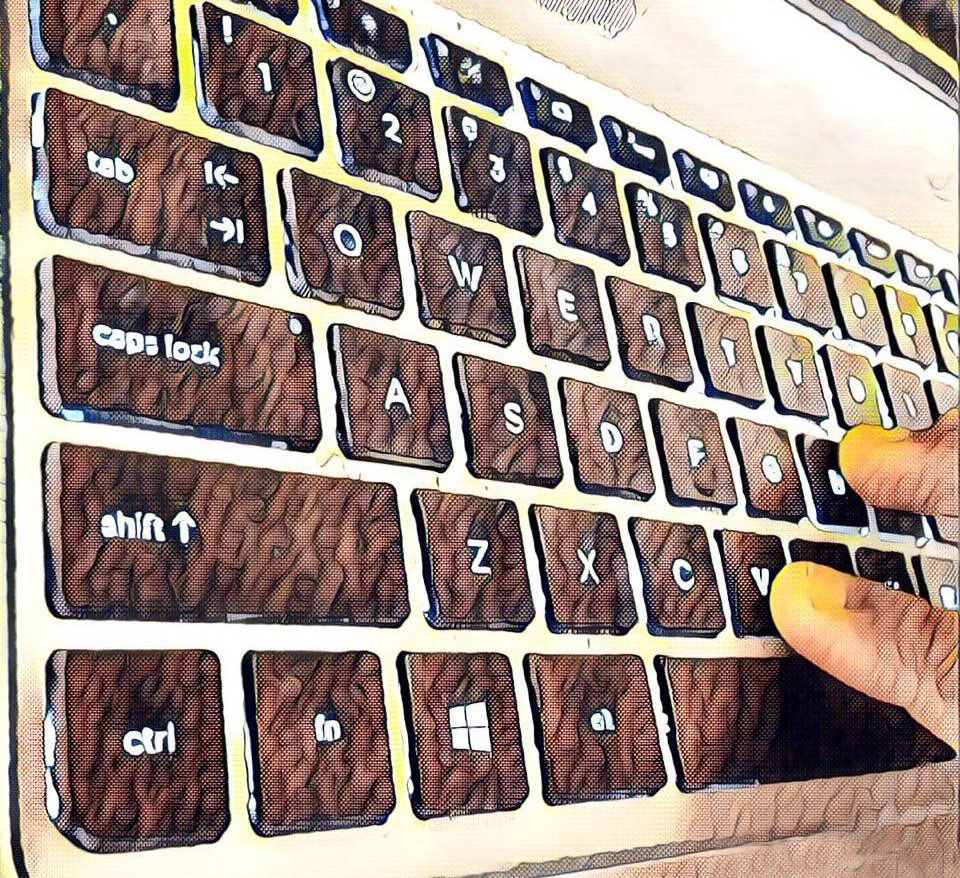
The fastest way to select all text in Word on Windows is the shortcut Ctrl and A, pressed together. Click anywhere inside your document first, so Word knows where your cursor is. Then hold the Ctrl key, press the letter A, and let go of both keys.
The whole document will light up with a highlight colour immediately. Every word, heading, and paragraph will be selected, from the first line to the last. You can now copy it with Ctrl and C, cut it with Ctrl and X, or delete it with the Delete key.
If you press Ctrl and A again while everything is already selected, Word will extend the selection to include headers, footers, and footnotes as well. This is a handy trick when you want to reformat absolutely everything in the file, including the small text at the top and bottom of each page.
The shortcut works in almost every version of Word for Windows, including Word 2016, Word 2019, Word 2021, and Microsoft 365. It also works in Word Online, the free version that runs in your browser, so you can use the same shortcut wherever you open Word.
Step 2: Select All With the Keyboard Shortcut on a Mac
On a Mac, the shortcut is Command and A, pressed together. Click inside your document first, then hold the Command key, press the letter A, and release both. The whole document will be highlighted, just as it is on Windows.
The only difference is the key itself. Mac keyboards use the Command key where Windows keyboards use Ctrl, but the letter is the same, and the result is the same. If you switch between a Windows computer and a Mac, this is one of the easiest shortcuts to remember, because only one key changes.
As on Windows, pressing Command and A a second time extends the selection to headers, footers, and footnotes. A third press selects everything in the document, including text boxes. This stepped approach gives you fine control over exactly how much you want to select.
If the shortcut does not work on your Mac, check that Word is the active program. Click the Word window once to bring it to the front, then try again. Another program running in the background can sometimes steal the shortcut, and closing it usually fixes the problem.
Step 3: Select All Using the Ribbon Menu
If you prefer the mouse, Word has a Select All button in the ribbon at the top of the screen. Click the Home tab, then look for the Editing group on the far right. Click Select, and a small menu will appear with the option Select All. Click it, and the whole document will be highlighted.
This menu also holds other useful selection commands. Select Objects lets you click on pictures and shapes instead of text. Select All Text With Similar Formatting picks out every heading of the same style, which is handy when you want to change all your headings at once. Select All in this menu is the one you will use most often.
The menu method is slower than the keyboard shortcut, but it is easier to discover, and it is a good choice when you are using a mouse and your hands are already off the keyboard. It is also the best method to teach someone who is new to Word, because they can see the command on screen.
On Word Online, the menu method is slightly different. Click Edit in the top menu, then choose Select All from the drop-down list. The result is the same: the whole document is highlighted and ready for your next command.
Step 4: Select All on a Phone or Tablet
On the Word app for iPhone or Android, tap once inside your document to place the cursor, then tap and hold on a word until a small menu appears. Tap Select All in that menu, and the whole document will be highlighted. You can then copy, cut, or format it from the menu that appears.
On an iPad with a keyboard, the computer shortcut works. Press Command and A to select the whole document, just as you would on a Mac. This is one of the best reasons to use a keyboard with an iPad, because it brings all the fast computer shortcuts to the tablet.
On a phone, selecting all is most useful for copying a short document into another app. For a very long document, a phone screen makes editing awkward, and it is better to do the heavy work on a computer. Use the phone for quick copies and small fixes, and save the big jobs for a larger screen.
If the Select All option does not appear on your phone, update the Word app to the latest version. Older versions of the app had a more limited selection menu, and updating usually brings the full set of options back.
Step 5: Select Only Part of a Document
Sometimes you do not want the whole document, only a section of it. The simplest way is to click at the start of the section, then hold Shift and click at the end. Word will select everything between the two clicks, which is far more accurate than dragging the mouse across the page.
To select a single paragraph, triple-click anywhere inside it. Word will highlight the whole paragraph at once, including its final paragraph mark. To select a single sentence, hold Ctrl on Windows or Command on a Mac and click inside the sentence. These small shortcuts make precise selection quick and painless.
To select a whole page, click at the start of the page, then hold Shift and click at the end of the page. To select a column of text in a table, move the mouse to the top of the column until the cursor changes to a small arrow, then click. Each of these methods is faster than dragging, and each one selects exactly what you want.
Learning to select precisely is just as valuable as learning Select All. Most editing jobs need only a paragraph or a page, and the right selection method for the job saves time and prevents accidental changes to the rest of the document.
Related: How to Copy on iPad: A Step-by-Step Guide for Seamless Text Copying
What to Do After You Select All
Once your document is selected, the most common next step is to copy it. Press Ctrl and C on Windows or Command and C on a Mac, then click where you want the copy to go and press Ctrl and V or Command and V to paste it. This is how you move a whole document into an email, a new file, or another program.
Another common job is reformatting. With everything selected, change the font, the font size, or the line spacing, and the whole document changes at once. This is the fastest way to fix a document that came from someone else with messy formatting, because one change fixes every paragraph together.
You can also use Select All to delete everything and start again. Press the Delete key or the Backspace key, and the document becomes blank. This sounds drastic, but it is useful when you are reusing a template and want to clear the old text before you type your own. Just be sure you have a copy saved first.
Select All is also handy for checking your document. With everything highlighted, you can see at a glance where the text ends, where the blank lines are, and whether any stray content hides at the bottom of the file. It is a simple way to take stock of a long document before you print or share it.

How to Select All in Headers, Footers, and Text Boxes
Headers and footers live outside the main body of the document, so the standard Select All does not touch them. To select all the text in a header, double-click inside the header area at the top of the page, then press Ctrl and A or Command and A. The header text will be highlighted, and you can edit it as normal.
The same trick works for footers. Double-click inside the footer area at the bottom of the page, press the shortcut, and the footer text will be selected. To return to the main document, double-click in the middle of the page, or press the Escape key twice.
Text boxes are also separate from the main text. Click the edge of the text box to select the box itself, then click inside it and press Ctrl and A or Command and A to select the text within. Footnotes work the same way: click inside the footnote area at the bottom of the page, then use the shortcut there.
If you press Ctrl and A three times in the main document, Word will eventually select headers, footers, footnotes, and text boxes as well. This stepped selection is a useful shortcut when you want to change the font of absolutely everything, but for most jobs, selecting each area separately gives you better control.
Common Problems With Select All and How to Fix Them
The most common problem is that nothing happens when you press the shortcut. This usually means Word is not the active window, or your cursor is not inside the document. Click once in the middle of your text, then try the shortcut again. It should work immediately.
Another problem is that only part of the document is selected. This can happen if your cursor is inside a table, a text box, or a header when you press the shortcut. Word selects all the text in that small area first, not the whole document. Click in the main body of the document and try again, or press the shortcut a second time to extend the selection.
Sometimes the highlight colour is hard to see, especially if you use a custom theme. You can change the selection colour in Word settings, or simply trust that the selection worked and press Copy to test it. Pasting into a blank document will show you exactly what was selected.
If the shortcut works in other programs but not in Word, another add-in may have taken over the key combination. Go to the Word options, open the Customize Ribbon section, and check the keyboard shortcuts. Resetting them to the defaults usually brings Ctrl and A back to normal.
Tips for Selecting Text Efficiently
Learn the keyboard shortcut first, because it is the fastest method by far. Ctrl and A on Windows, Command and A on a Mac, is a shortcut you will use every day, in Word and in almost every other program too. It works in browsers, email apps, and file managers, so it is worth learning well.
Practise selecting different amounts of text: a word, a sentence, a paragraph, a page, and the whole document. Each size has its own shortcut, and knowing all of them means you always pick the right one for the job. A minute of practice now saves many minutes of dragging later.
Use Select All before you reformat a document you received from someone else. Changing the font and spacing of the whole file at once is much faster than fixing one paragraph at a time. It also makes the document look consistent, which is exactly what a reader expects.
Always check what is selected before you press Delete. A quick glance at the highlighted area tells you whether you have the whole document or just a paragraph. That one second of checking has saved many people from deleting hours of work by accident.
Related: How to Do Hanging Indent on Google Docs iPad
Select All in Other Programs
The Select All shortcut is not limited to Word. In Google Docs, Ctrl and A or Command and A selects the whole document in exactly the same way. In an email program, it selects all the text in the message you are writing. In a web browser, it selects the whole page, which is handy for copying an article.
In Excel, Ctrl and A selects the whole worksheet, or the current table of data if you press it once. In PowerPoint, it selects all the objects on the current slide. The shortcut is one of the most consistent commands in all of computing, and it behaves the same way almost everywhere.
Learning Select All in Word therefore teaches you a skill you can use in dozens of programs. Once your fingers know Ctrl and A, you will reach for it without thinking, whether you are writing a document, answering an email, or filling in a form online.
The only program where it behaves very differently is a file manager, where Ctrl and A selects all the files in a folder. That is still useful, but be careful: pressing Delete there deletes files, not text, so always check what is selected before you act.
Frequently Asked Questions About Select All in Word
What is the shortcut to select all in Word. On Windows, press Ctrl and A together. On a Mac, press Command and A together. Click inside the document first, and the whole document will be highlighted instantly.
How do I select all text in Word on a phone. Tap and hold on a word until a menu appears, then tap Select All. On an iPad with a keyboard, press Command and A, just as you would on a Mac.
Why does Select All not include my header. Headers and footers are separate from the main document body. Double-click inside the header first, then press Ctrl and A or Command and A to select the header text on its own.
How do I select all text with the same formatting. Click the Home tab, then Select in the Editing group, and choose Select All Text With Similar Formatting. Word will highlight every paragraph that uses the same style as the one your cursor is in.
Can I undo Select All. Select All does not change your document, so there is nothing to undo. If you press Delete after selecting all, press Ctrl and Z or Command and Z immediately to bring the text back.
Does Select All work in Word Online. Yes, Ctrl and A or Command and A works in Word Online, and you can also use the Edit menu and choose Select All. The result is the same as in the desktop version of Word.
Related: How to Control F on iPhone 15: A Step-by-Step Guide
Conclusion
Select All is a tiny command with an outsized effect on how fast you work in Word. One shortcut highlights the whole document, ready to copy, reformat, or move, and it takes less than a second to use. Once you learn it, you will wonder how you ever managed with the mouse alone.
Start by practising Ctrl and A or Command and A in a copy of a real document. Try copying the whole file, changing its font, and then undoing your changes. Then learn the smaller selection tricks for a sentence and a paragraph, and you will have a complete set of selection skills.
Open Word today and try it. Select all, copy, paste, and reformat, and see how much quicker the job feels. It is a small change to your habits, and it pays off every single time you sit down to write.
