
A QR code is a square pattern of black and white blocks that holds a link, a piece of text, or some other information. You see them on menus, posters, tickets, product boxes, and payment counters. Your iPhone can read them in seconds, and you do not need to download a special app to do it.
Scanning a QR code on an iPhone is easy once you know where to look. The built in Camera app can scan most codes, and Control Center has a dedicated code scanner as well. This guide shows you every method step by step.
You will learn how to scan a code with the Camera app, how to use the Code Scanner in Control Center, and how to scan a code from a photo in your camera roll. You will also learn what to do when a code will not scan.
You do not need any extra tools for this guide. You only need an iPhone with a working camera and the latest iOS update you can install. The steps work on recent iPhones, and most of them work on older models too.
What Is a QR Code
QR stands for Quick Response. The code was made to store information in a form that a camera can read very fast. A phone camera reads the pattern and turns it back into a web address, a Wi-Fi password, or a payment link.
You will find QR codes in many places in daily life. A restaurant may put one on the table so you can see the menu on your phone. A shop may put one on a poster so you can visit its website. A ticket may have one that the staff scan at the door.
Some QR codes open a website when you scan them. Others add a contact to your phone, connect you to a Wi-Fi network, or open an app. The iPhone will show you what the code will do before you tap anything.
A QR code is safe to scan in most cases, but you should still be careful. A code on a public poster could lead to a fake website. Always check the web address shown on your screen before you tap it.
What You Need Before You Start
Make sure your iPhone camera is clean. A dirty lens can make a QR code hard to read. Wipe the lens gently with a soft cloth before you start scanning.
Check that you have enough light. QR codes are hard to read in a dark room. Move closer to a light or turn on your phone torch if the code is in shadow.
Update your iPhone to the latest version of iOS if you can. Newer versions have a better camera and a better code scanner. Go to Settings, then General, then Software Update to check for an update.
Make sure the camera is not blocked by a case or a screen protector. A thick case can cast a shadow on the lens. Remove the case if the camera cannot focus on the code.
Step 1: Turn On Scan QR Codes in Settings
Open the Settings app on your iPhone. Scroll down and tap Camera. This opens the camera settings page with a list of options for photos and videos.
Look for the option called Scan QR Codes. Make sure the switch next to it is turned on and shows green. If it is off, tap it once to turn it on.
This setting is on by default on most iPhones. If you have never changed your camera settings, it is probably already on. Still, check it once so you know the feature is ready.
Go back to the Home Screen after you turn the setting on. Your Camera app is now ready to scan QR codes. You do not need to restart your phone.
Step 2: Scan a QR Code with the Camera App
Open the Camera app on your iPhone. You can tap the Camera icon on the Home Screen or swipe left on the Lock Screen to open it. Make sure the camera is set to Photo mode at the bottom of the screen.
Point your camera at the QR code. Hold your phone steady and keep the code inside the frame on the screen. You do not need to take a photo or press any button.
Move your phone closer or further away until the code is clear and in focus. The iPhone will focus on the code by itself in a few seconds. Keep your hand steady while it focuses.
A yellow box will appear around the code, and a small banner will show at the top or bottom of the screen. The banner will show the web address or the action linked to the code. Read it before you tap it.
Tap the banner to open the link or carry out the action. If it is a website, Safari will open and load the page. If it is a Wi-Fi network, your phone will ask if you want to join it.
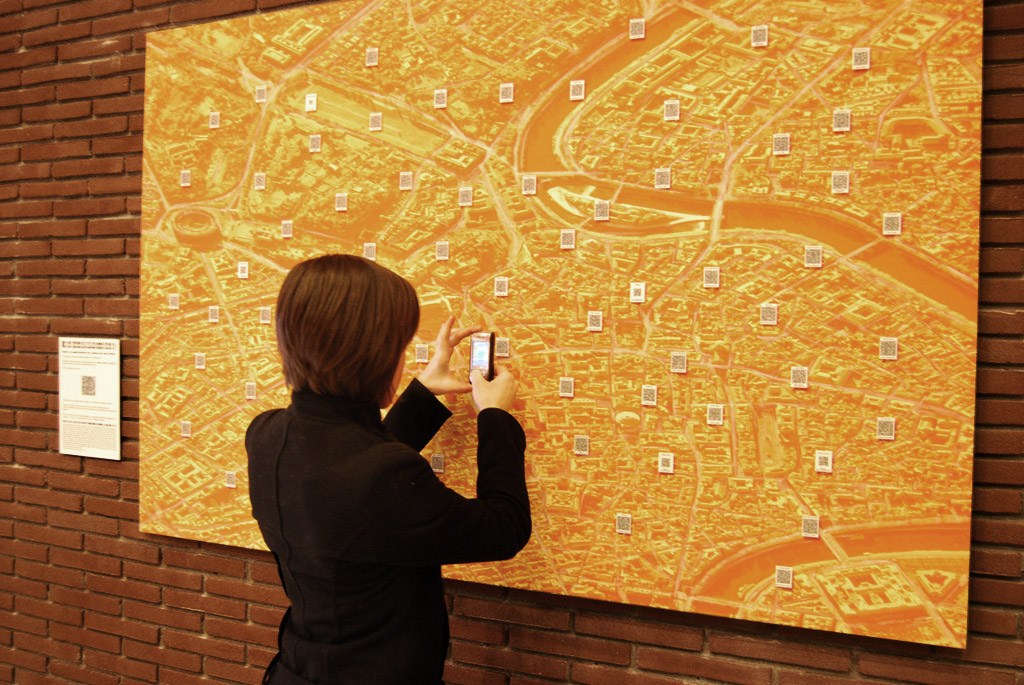
Step 3: Use the Code Scanner in Control Center
The Code Scanner is a faster way to scan codes, especially in a dark place. It turns on your phone torch automatically and opens a simple scanner screen. You can add it to Control Center in a few steps.
Open Settings and tap Control Center. Scroll down to the list of more controls and find Code Scanner. Tap the green plus button next to it to add it to your Control Center.
Swipe down from the top right corner of your screen to open Control Center. On older iPhones with a Home button, swipe up from the bottom of the screen instead.
Tap the Code Scanner icon, which looks like a small QR code. The scanner will open with a square frame in the middle of the screen. Point the frame at the QR code you want to scan.
The scanner will read the code and open the link or show the action on the screen. This method works well when the Camera app is slow to focus, or when you need the torch on to see the code.
Step 4: Scan a QR Code from a Photo
Sometimes the QR code is in a photo or a screenshot on your phone. You do not need to point your camera at another screen to scan it. Your iPhone can read the code straight from the photo.
Open the Photos app and find the photo that has the QR code in it. Tap the photo to open it full screen. Look for the small QR code icon at the bottom right corner of the photo, or press and hold on the code itself.
If you see the QR code icon, tap it. Your iPhone will read the code and show a banner with the link or action. Tap the banner to open it.
If you do not see the icon, press and hold your finger on the QR code in the photo. A menu will appear with an option to open the link. Tap that option to follow the link.
You can also use this method for a screenshot of a QR code. Take a screenshot of the code, open it in Photos, and press and hold on the code. This is useful when a friend sends you a code in a message.
Related: How to Scan QR Code on iPhone 15 From Camera Roll
Step 5: Scan a QR Code from Safari or Another App
Some apps have their own QR code scanner built in. The Safari browser, the Wallet app, and many payment apps can scan codes without opening the Camera app. Look for a small QR code icon in the app you are using.
In Safari, tap the address bar and look for a QR code icon on the keyboard if it appears. In some apps, you can tap a scan button to open the camera inside the app.
Point the camera at the code and hold it steady, just as you would with the Camera app. The app will read the code and show you what it will do next.
This is useful when you are already inside an app and do not want to switch to the Camera. A payment app, for example, can scan a payment code directly and open the payment screen.
Step 6: Scan a QR Code for Wi-Fi
A Wi-Fi QR code lets you join a network without typing a long password. Many cafes, hotels, and offices put a Wi-Fi QR code on the wall or on the table. Scanning it connects your phone to the network.
Point your iPhone camera at the Wi-Fi QR code. A banner will appear at the top of the screen saying Join Wi-Fi Network and showing the network name. Tap the banner.
Your iPhone will ask you to confirm that you want to join the network. Tap Join. Your phone will connect to the Wi-Fi without you typing a password.
Check that you are connected by looking at the Wi-Fi icon at the top of your screen. Open Safari and load a web page to confirm the internet is working. If it does not connect, ask the staff for the password and type it in by hand.
Step 7: Scan a QR Code to Add a Contact or Open an App
Some QR codes add a contact to your phone. When you scan one, your iPhone will show the contact details and ask if you want to save them. Tap Create New Contact to save the person to your contacts.
Other QR codes open an app or a page in the App Store. If the app is already on your phone, the code will open it. If it is not installed, your phone will open the App Store page so you can download it.
A QR code can also open a map location, a video, or a document. Your iPhone will show you what will happen before it does it. Read the banner carefully and tap it only if you trust the source.
If the code opens something you did not expect, close it and do not tap any more buttons. A code that leads to a strange website may be a fake. Go back and check where the code came from.

What to Do When a QR Code Will Not Scan
Hold your phone steady and give the camera time to focus. A shaky hand is the most common reason a code will not scan. Rest your elbows on a table if you need to keep the phone still.
Move closer to the code or further away. If you are too close, the camera cannot see the whole code. If you are too far, the code is too small to read. Move slowly until the yellow box appears.
Check the light. A code in shadow or in bright sunlight can be hard to read. Move the code into soft, even light, or turn on your phone torch from Control Center.
Clean your camera lens with a soft cloth. A fingerprint or a smudge on the lens can blur the code. A quick wipe often fixes the problem at once.
Make sure the code is not damaged or torn. A code with a missing corner or a big scratch may not scan at all. Ask for a new copy of the code if the one you have is damaged.
Restart the Camera app if it is stuck. Swipe up to close the app, then open it again. If that does not help, restart your iPhone and try once more.
Related: How to Scan QR Code on iPhone 15
Staying Safe When You Scan QR Codes
Only scan codes from sources you trust. A code on a poster in a shop or on an official ticket is usually safe. A code on a random sticker on a wall may lead to a fake website.
Always read the web address in the banner before you tap it. If the address looks strange or does not match the place you expect, do not tap it. A real website address is easy to read and matches the business name.
Never enter your password or your bank details on a page that opened from a QR code unless you are sure the page is real. A fake page can look just like a real login page. Go to the official website by typing the address yourself if you are unsure.
Be careful with codes that ask you to download an app. Only download apps from the App Store. Do not install a profile or a file from a website that a QR code opened.
If a code asks for payment, check the amount and the business name before you confirm. A payment code in a real shop will show the shop name. If it shows a name you do not recognise, stop and ask the staff.
Tips for Scanning Codes Faster
Add the Code Scanner to Control Center so you can open it in one swipe. This is faster than opening the Camera app when you are in a hurry at a counter or a ticket gate.
Keep your camera lens clean. A quick wipe before you leave the house will save you time later. A clean lens focuses faster on every code you scan.
Hold your phone with both hands when you scan. Two hands keep the phone steadier than one hand, and the code will scan faster. This helps a lot in a busy place.
Learn the distance that works best for your phone. Most iPhones scan best when the code fills about half of the screen. Once you know the right distance, every scan will be quick.

Frequently Asked Questions
Do I need an app to scan a QR code on my iPhone. No, you do not need a separate app. The built in Camera app and the Code Scanner in Control Center can both scan QR codes. Third party scanner apps are not needed for most people.
Why is my iPhone not scanning QR codes. Check that Scan QR Codes is turned on in Settings, then Camera. Also check that your lens is clean, that there is enough light, and that you are holding the phone steady.
Can I scan a QR code from a screenshot. Yes, open the screenshot in the Photos app and press and hold on the code. Your iPhone will read the code and offer to open the link.
Is it safe to scan any QR code I see. Most codes are safe, but a code in a public place could lead to a fake website. Read the address shown on your screen before you tap it, and never type a password on a page you reached through a code you do not trust.
Does scanning a QR code use mobile data. Scanning the code itself does not use data, but opening the website or video it links to will use Wi-Fi or mobile data. Use Wi-Fi when you can to save your mobile data.
Scanning a QR code on an iPhone is a skill you will use again and again. Menus, tickets, payments, and Wi-Fi networks all use these codes now. Once you know the Camera method and the Code Scanner method, you can handle almost any code you meet.
Practice with a code you trust, such as one on a product box at home. Point your camera at it, wait for the banner, and read what it says. After a few tries, scanning will feel natural and quick.
Keep your camera settings on, your lens clean, and your phone updated. Those three simple habits will make every scan work the first time. The next time you see a QR code, you will know exactly what to do.
Related: How to Restart iPhone 13