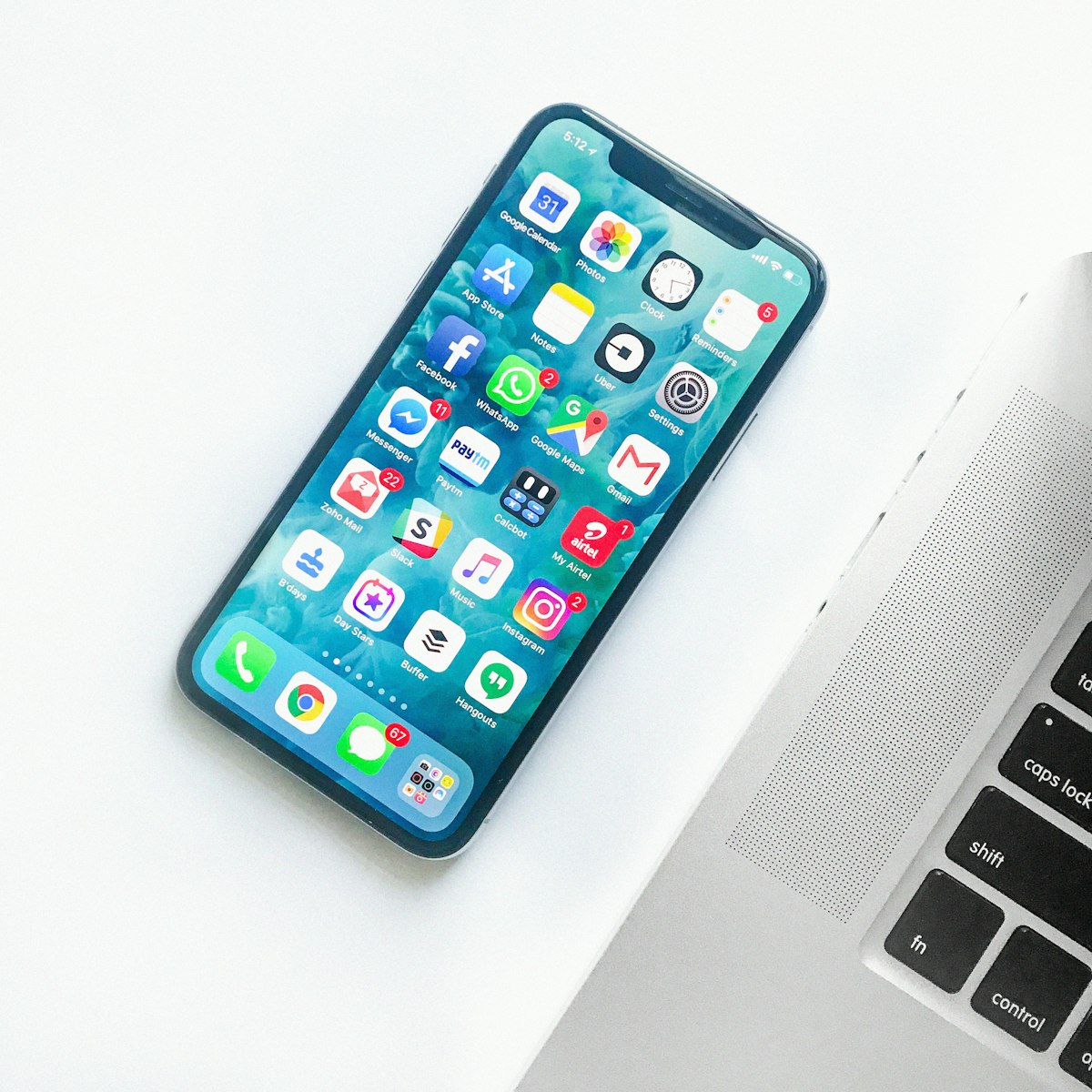
Your iPhone holds a growing list of saved passwords, and Google keeps its own list too, which can make it confusing to know where a password lives and how to manage it. When you sign in to a website in Chrome on your iPhone, Google offers to save the password, and that password then appears in your Google Password Manager. At the same time, your iPhone has its own built-in password manager, and the two lists do not always match. This guide explains how to find, view, edit, and delete your Google passwords list on an iPhone, and how to keep the two systems working together without confusion.
The first thing to understand is that there are two different places your passwords can be saved on an iPhone. The first is Apple's own password manager, which lives in the Settings app under Passwords, and which works with Safari and with apps. The second is Google Password Manager, which lives inside the Chrome app and syncs with your Google account. If you use Chrome as your main browser, most of your web passwords will be in Google Password Manager, while passwords saved in Safari or in apps will be in Apple's list. Knowing which list you are looking at is the key to finding any password quickly.
To open your Google passwords list on an iPhone, start by opening the Chrome app and tapping the three dots in the bottom right corner of the screen. A menu appears with several options, and you should tap Settings, which is usually near the bottom. On the Settings page, look for Password Manager and tap it, and you will see the full list of websites and usernames that Google has saved for you. The list is shown in alphabetical order, which makes it easy to find a particular site by scrolling or by using the search box at the top.
Before you can see any password, your iPhone will ask you to prove it is really you. This is a security step, and it uses Face ID, Touch ID, or your device passcode, depending on how your phone is set up. Hold your phone up to your face, or place your finger on the sensor, and the list will unlock. This check happens every time you open the password list, and it is there to stop someone who picks up your unlocked phone from reading all your passwords. Never turn this check off, and never let someone else unlock the list for you.
Once the list is open, tap any entry to see the details for that site. You will see the website address, the username or email you used, and the password itself, which is hidden behind dots until you tap the eye icon to reveal it. You can also see when the password was last changed and whether Google has flagged it as weak, reused, or involved in a known data breach. These warnings are worth paying attention to, because a password that appears in a breach should be changed as soon as possible, even if the account still works fine.
To change a saved password in Google Password Manager, open the entry for the site and tap Edit. You can change the username, the password, or both, and then tap Done to save the new details. It is important to understand that changing the password here only changes the saved copy on your phone, it does not change the password on the website itself. You must first change the password on the actual website, and then update the saved copy in Google Password Manager to match, or the next time you sign in, Chrome will fill in the old password and the login will fail.
To delete a password from the list, open the entry and tap Delete, then confirm when your phone asks you to. Deleting a saved password removes it from Google Password Manager on all your devices, because the list syncs through your Google account. This is useful when you have closed an account and no longer need the login, or when an old entry is causing Chrome to fill in the wrong details. Be careful, though, because once a password is deleted from Google, it is gone from every device, and you will need to reset the password on the website if you forget it later.
If you see duplicate entries for the same website, it usually means you saved the password more than once, perhaps after changing it on the site. Google sometimes creates a new entry instead of updating the old one, and the two entries can sit side by side in the list. Open both entries, work out which one has the current password, and delete the old one. Keeping the list clean makes signing in faster, because Chrome will not have to guess which saved password to use, and it stops the confusion of seeing two logins for the same site.
Google Password Manager also has a built-in password checkup that scans your whole list for problems. To run it, open Password Manager in Chrome, scroll to the bottom of the list, and tap Check passwords. Google will compare your saved passwords against lists of known breached passwords and check for weak or reused ones. The results appear as a list of accounts that need attention, and you can tap each one to see what is wrong and how to fix it. Running this check every few months is one of the best habits you can build for your online security.
One of the most useful features of Google Password Manager is that it can create a strong password for you when you sign up for a new account. When Chrome sees a new account form, it offers to suggest a password, which is a long random mix of letters, numbers, and symbols. Accept the suggestion, and Chrome saves it automatically, so you never need to remember it yourself. This is far safer than reusing a password you already know, because a unique password for every site means that a breach on one site cannot be used to get into your other accounts.
To make Chrome the default place for saving passwords on your iPhone, you need to check your iPhone settings as well. Open the Settings app, go to Passwords, then tap Password Options, and you will see a list of apps that are allowed to fill in passwords. Make sure Chrome is turned on in that list, and you can also turn on AutoFill Passwords at the top of the page. With this set up, Chrome can offer to fill in your Google passwords even when you are using another app or browser, which saves you from switching back and forth.
There is a related setting in the Chrome app itself that controls whether Google offers to save passwords at all. Open Chrome, go to Settings, then Password Manager, then Settings, and you will see a toggle for Offer to save passwords. If this is turned off, Chrome will never ask to save a new password, and you will have to type every login by hand. Most people should leave it turned on, because saving passwords is what makes the manager useful, but if you share your phone with others, turning it off stops their logins from being saved on your device.
If you sign in to Chrome with your Google account, your passwords sync to every device where you use the same account, including your computer and your tablet. This is convenient, because a password you save on your iPhone is available on your laptop straight away. To check that sync is working, open Chrome on your iPhone, go to Settings, and tap your Google account at the top. Make sure Passwords is turned on in the sync options, and if it is off, turn it on and wait a few minutes for the lists to match up.
Sometimes a password you saved on your computer does not appear on your iPhone, and the most common cause is that you are signed in to a different Google account on the two devices. Check the account shown at the top of Chrome settings on both devices, and make sure they match. If they do not, sign out of the wrong account and sign in with the right one, and the password list will update. This is a common problem in households where several people share devices, so it is always worth checking the account first.
Another reason a password might be missing is that it was saved in Apple's password manager rather than in Google's. If you signed in to a site in Safari, the password went to Apple's list, not Google's, and it will not appear in Chrome. To see Apple's list, open the Settings app, tap Passwords, and unlock it with Face ID. You can look up the password there, and if you want it in Google as well, you can add it to Chrome manually by opening Password Manager, tapping Add, and typing in the site, username, and password yourself.
Exporting your passwords is possible, but it should be done with care, because an exported file contains every password in plain text. In Chrome on a computer, you can export your Google passwords from the Password Manager settings, and the file is saved as a CSV that any spreadsheet app can open. Only do this if you need to move to a different password manager, and delete the file immediately afterwards, because anyone who finds it can read all your passwords. Never email the file to yourself, and never store it in a cloud folder.
If you lose your iPhone or it is stolen, your Google passwords are protected by your Google account, not by the phone itself. As long as your Google account has a strong password and two-factor authentication turned on, nobody can open your password list without your phone's unlock code and your Google login. You can also go to your Google account on another device and sign out of the lost phone remotely, which stops anyone from using the saved passwords. Turning on two-factor authentication for your Google account is one of the most important steps in this whole guide.
It is also worth knowing how to stop Chrome from saving a password for a particular site. When Chrome offers to save a password and you tap Never, it adds the site to a list of sites where passwords are never saved. To see that list, open Password Manager in Chrome, go to Settings, and look for the Never Saved section. You can remove a site from that list if you change your mind, and Chrome will offer to save the password again the next time you sign in. This is useful for shared or public computers, but on your own phone it is usually better to save the password.
For families, Apple offers a way to share passwords securely between family members, but Google Password Manager does not have the same built-in family sharing on iPhone. If you need to share a login with a family member, the safest way is to use a dedicated family password manager, or to share the password through a secure note rather than a text message or an email. Never send a password in a plain message, because messages can be read if a phone is lost or an account is hacked.
To sum up, your Google passwords list on an iPhone lives inside the Chrome app, under Settings and then Password Manager, and it is protected by Face ID or your passcode. From there you can view, edit, delete, and check any saved password, and you can run a security checkup to find weak or breached ones. Keep Chrome set as an AutoFill provider in your iPhone settings, make sure you are signed in to the right Google account so your passwords sync, and turn on two-factor authentication for your Google account. With those steps in place, your passwords stay safe, organised, and ready whenever you need to sign in.

Related: How to Restart iPhone 13
Managing passwords is only one part of keeping your iPhone running well, and a simple restart is another basic skill that fixes a surprising number of problems. If Chrome is acting strangely or a password will not fill in, restarting the phone is often the quickest fix. This guide explains how to restart iPhone 13, step by step.

Related: How to Enable Hotspot on iPhone
Your iPhone settings hold many tools that work alongside password management, and the personal hotspot is one of the most useful when you need to get another device online. Learning where these settings live makes the whole phone easier to manage. This guide shows you how to enable the hotspot on iPhone, step by step.
Related: How to Record Screen on iPhone
If you ever need to show someone else how to manage their passwords, recording your iPhone screen is the easiest way to make a clear tutorial. A short screen recording can show the exact taps and menus far better than a written description. This guide explains how to record the screen on iPhone, step by step.