
Want to keep your private files away from prying eyes? Whether it’s personal documents, work files, photos, or financial records, learning how to lock folder in Windows 10 is one of the easiest ways to protect your data.
Windows 10 doesn’t offer a one-click “lock folder” button, but don’t worry — there are several safe and effective methods to secure your folders. In this complete step-by-step guide, we’ll explore built-in Windows tools, password protection methods, encryption, and third-party software options.
By the end of this guide, you’ll know exactly how to protect your folders like a pro.
Why You Should Lock a Folder in Windows 10
Let’s start with a simple question: Why lock a folder at all?
Here are common reasons:
-
🔐 Protect personal documents
-
👨👩👧 Prevent family members from accessing private files
-
💼 Secure work-related information
-
💳 Safeguard financial records
-
🖼 Keep private photos hidden
Think of folder locking like putting valuables in a safe. It adds an extra layer of protection.
Does Windows 10 Have a Built-in Folder Lock Feature?
Short answer: Not exactly.
Windows 10 doesn’t provide a direct password-protect-folder option. However, it does offer:
-
File Encryption (EFS)
-
Folder permission controls
-
BitLocker drive encryption
-
Compression with password (via ZIP)
We’ll cover each method step-by-step.
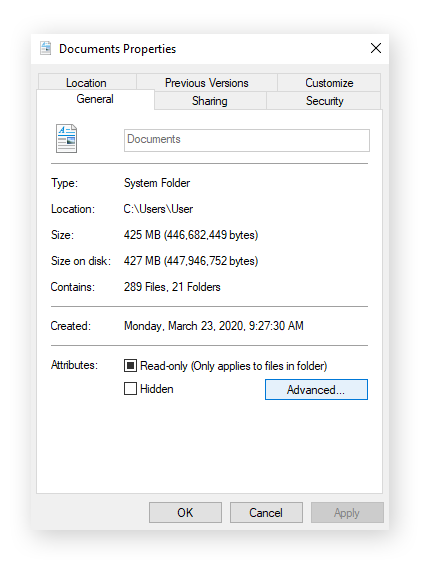
Method 1: How to Lock Folder in Windows 10 Using Built-in Encryption (EFS)
What Is EFS?
EFS (Encrypting File System) allows you to encrypt files and folders so only your user account can open them.
Step-by-Step Guide to Encrypt a Folder
-
Right-click the folder you want to lock.
-
Click Properties.
-
Select the General tab.
-
Click Advanced.
-
Check Encrypt contents to secure data.
-
Click OK, then Apply.
-
Choose:
-
Apply changes to this folder only
-
Or apply to folder, subfolders, and files
-
-
Click OK.
That’s it.
Now only your Windows account can access that folder.
Important Tip
Back up your encryption key when prompted. If you lose access to your account, you could lose your encrypted files permanently.
Method 2: Lock a Folder in Windows 10 Using Folder Permissions
You can restrict access using user permissions.
Step-by-Step Instructions
-
Right-click your folder.
-
Click Properties.
-
Go to the Security tab.
-
Click Edit.
-
Select the user account you want to block.
-
Check Deny for Full Control.
-
Click Apply.
Now that user cannot access the folder.
This method works well if multiple users share the same PC.
Method 3: Use a Password-Protected ZIP File
Windows allows password-protected compressed folders using third-party tools like WinRAR or 7-Zip.
Step-by-Step
-
Right-click your folder.
-
Select Add to archive (if 7-Zip is installed).
-
Choose archive format (ZIP or 7z).
-
Enter a password.
-
Click OK.
Delete the original folder after verifying the ZIP works.
Now your folder is password protected.
Method 4: How to Lock Folder in Windows 10 Using BitLocker
What Is BitLocker?
BitLocker encrypts entire drives, not just folders.
It’s best for:
-
External hard drives
-
USB drives
-
Secondary partitions
Steps to Enable BitLocker
-
Open Control Panel.
-
Click System and Security.
-
Select BitLocker Drive Encryption.
-
Choose a drive.
-
Click Turn on BitLocker.
-
Set a password.
-
Save recovery key.
-
Start encryption.
Now your entire drive is protected.
Method 5: Use Third-Party Folder Lock Software (Easiest Method)
If you want a simple password prompt when opening a folder, third-party software is easiest.
Popular Folder Lock Tools
1. Folder Lock
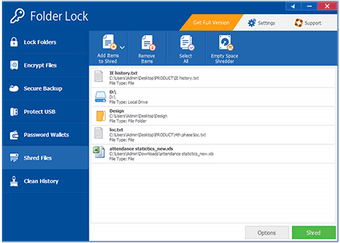

Features:
-
Password-protected folders
-
File encryption
-
Secure backup
-
Stealth mode
2. Wise Folder Hider
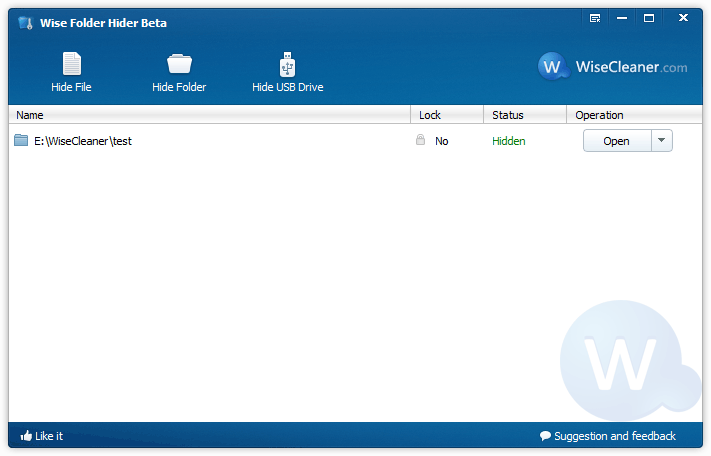
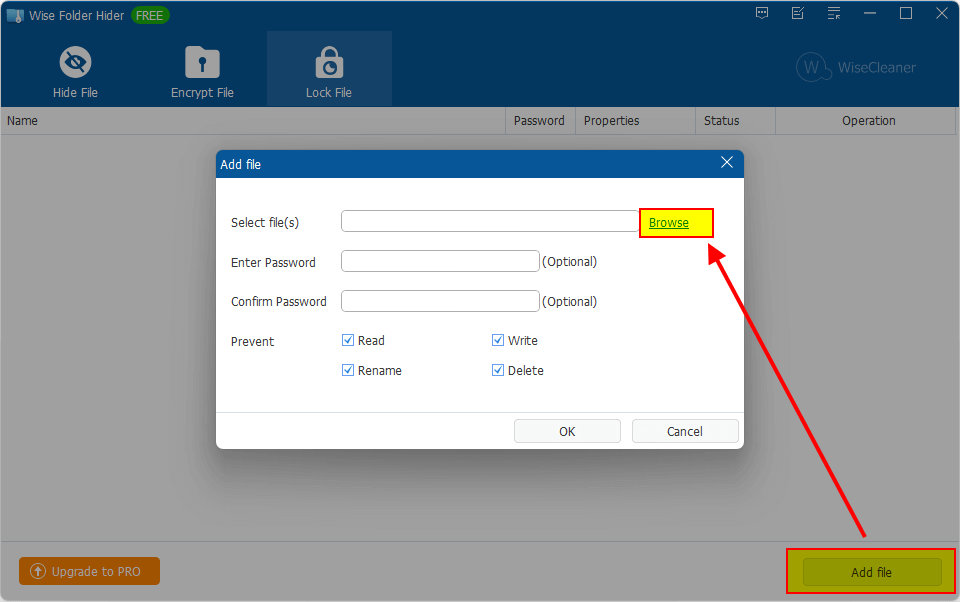
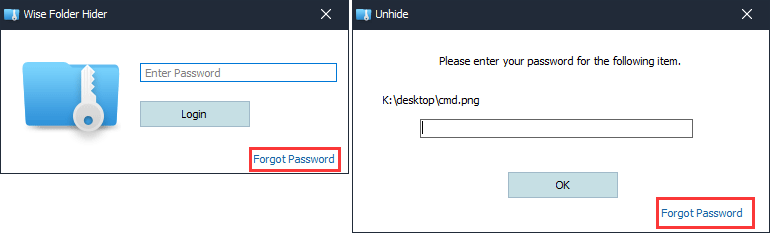
Features:
-
Hide folders completely
-
Add password protection
-
Easy interface
-
Lightweight
Step-by-Step: Lock Folder Using Wise Folder Hider
-
Download from official website.
-
Install and launch.
-
Create a master password.
-
Drag your folder into the program.
-
Click Hide.
-
Set individual password (optional).
Now the folder disappears from File Explorer.
Only accessible through Wise Folder Hider.
Which Method Is Best for You?
| Method | Password Protection | Best For | Difficulty |
|---|---|---|---|
| EFS Encryption | No separate password | Single-user PCs | Easy |
| Permissions | No | Multi-user PC | Medium |
| ZIP Password | Yes | Sharing files | Easy |
| BitLocker | Yes | Entire drives | Medium |
| Third-party tool | Yes | Maximum security | Easy |
If you want the simplest method, go with Wise Folder Hider.
How Secure Are These Methods?
Let’s compare security levels:
-
EFS: Strong but tied to user account
-
BitLocker: Very strong full-disk encryption
-
ZIP password: Moderate
-
Third-party tools: Depends on software quality
For highest security, use BitLocker or trusted software.
How to Unlock a Locked Folder
Depending on the method:
-
EFS: Log into your account
-
Permissions: Restore access in Security tab
-
ZIP: Enter password
-
BitLocker: Enter drive password
-
Software: Enter master password
Common Problems and Fixes
Forgot Password?
If using third-party software, recovery depends on program support.
If using BitLocker, use recovery key.
Folder Still Visible After Locking?
Check if:
-
You applied changes correctly
-
Software is running properly
-
Folder permissions updated
How to Hide a Folder Without Password (Quick Trick)
-
Right-click folder.
-
Click Properties.
-
Check Hidden.
-
Click Apply.
Then disable “Show hidden files” in File Explorer.
This is basic privacy, not strong security.
How to Lock Folder in Windows 10 for Kids or Family
If your PC is shared:
-
Create separate Windows accounts
-
Restrict permissions
-
Use parental controls
This is safer than hiding folders.
Best Security Practices for Windows 10
For maximum protection:
-
Use strong Windows password
-
Enable BitLocker
-
Back up important data
-
Keep Windows updated
-
Avoid unknown software downloads
Security works best in layers.
Conclusion: Protect Your Data the Smart Way
Now you know exactly how to lock folder in Windows 10 using built-in tools and third-party software.
Here’s a quick recap:
-
Use EFS for built-in encryption
-
Use permissions for shared PCs
-
Use ZIP files for password protection
-
Use BitLocker for full-drive encryption
-
Use Wise Folder Hider for easiest locking
Your files are valuable. Protect them before it’s too late.
Take five minutes today and secure your important folders.
FAQs
1. Can I password-protect a folder in Windows 10 without software?
Not directly. You must use encryption or third-party tools.
2. Is BitLocker available in all Windows 10 versions?
No. It’s available in Pro and Enterprise editions.
3. Is hiding a folder secure?
No. It only hides visibility but doesn’t protect access.
4. Can someone bypass folder lock software?
If software is weak or password is simple, yes. Use strong passwords.
5. What is the safest way to lock a folder?
Using BitLocker or trusted encryption software.
Summary – Key Takeaways
-
Windows 10 doesn’t offer direct folder password protection
-
Use encryption, permissions, or third-party tools
-
BitLocker offers strongest security
-
Always back up encryption keys
-
Use layered security for best protection
Security isn’t complicated — it just requires the right steps. Start protecting your files today. 🔐