
Is your computer running out of space for no clear reason? Wondering why your storage keeps filling up even though you haven’t installed anything new? If that sounds familiar, duplicate files might be the hidden culprit. In this complete guide on how to find duplicate files in Windows 10, we’ll walk through safe, effective, and beginner-friendly methods to clean up your PC and reclaim valuable storage space.
Duplicate files can include photos, videos, documents, downloads, backups, and even hidden system duplicates. Over time, these copies quietly consume gigabytes of storage. The good news? You can find and remove them quickly with the right tools and approach.
Let’s get started.
Table of Contents
ToggleWhy Do Duplicate Files Appear in Windows 10?
Before we jump into how to find duplicate files in Windows 10, let’s understand why they exist in the first place.
Duplicate files usually happen because:
-
You download the same file multiple times
-
You copy files to different folders
-
Backup software creates multiple versions
-
Cloud sync conflicts (OneDrive, Google Drive, etc.)
-
File transfers from USB drives
-
Software installations
Think of duplicates like photocopies piling up in a drawer — harmless at first, but overwhelming over time.
What Problems Do Duplicate Files Cause?
You might think, “So what if I have a few copies?” But duplicates can:
-
Waste storage space
-
Slow down file searches
-
Create confusion about which version is the latest
-
Make backups larger than necessary
-
Reduce overall system efficiency
Finding and removing duplicate files in Windows 10 helps your PC run smoother and keeps your storage organized.
How Much Space Can You Actually Recover?
It depends on your usage, but many users recover:
-
5–10 GB on average
-
20+ GB if storing many photos or videos
-
Even 50+ GB on older systems
That’s a lot of room for new apps, games, or files.
Method 1: How to Find Duplicate Files in Windows 10 Using File Explorer
Windows 10 doesn’t have a built-in duplicate finder, but we can use smart search filters.
Step 1: Open File Explorer
Press:
Windows + E
Step 2: Choose the Folder to Search
It’s best to check:
-
Downloads
-
Documents
-
Pictures
-
Desktop
Start with large folders.
Step 3: Use Search Filters
In the search bar (top right), type:
Or sort by:
-
Name
-
Size
-
Date modified
Look for identical file names and sizes.
Step 4: Manually Compare Files
Check:
-
File name
-
File size
-
Date created
-
File location
If everything matches, it’s likely a duplicate.
⚠️ Be careful not to delete system files.
Method 2: Use Command Prompt to Find Duplicate Files
If you prefer a more advanced method:
Step 1: Open Command Prompt
Press:
Windows + R
Type cmd
Press Enter
Step 2: Use This Command
To list files sorted by size:
This helps identify identical file sizes.
However, this method requires careful review.
Method 3: Use PowerShell to Detect Duplicate Files
PowerShell is more powerful.
Step 1: Open PowerShell
Right-click Start > Windows PowerShell
Step 2: Run a Duplicate Check Script
PowerShell can compare file hashes to detect identical files.
This method is more accurate because it checks file content, not just names.
Method 4: Use Free Duplicate File Finder Software (Recommended)
Manual searching works, but it’s slow. Dedicated tools make finding duplicate files in Windows 10 much easier.
Best Free Tools
1. CCleaner
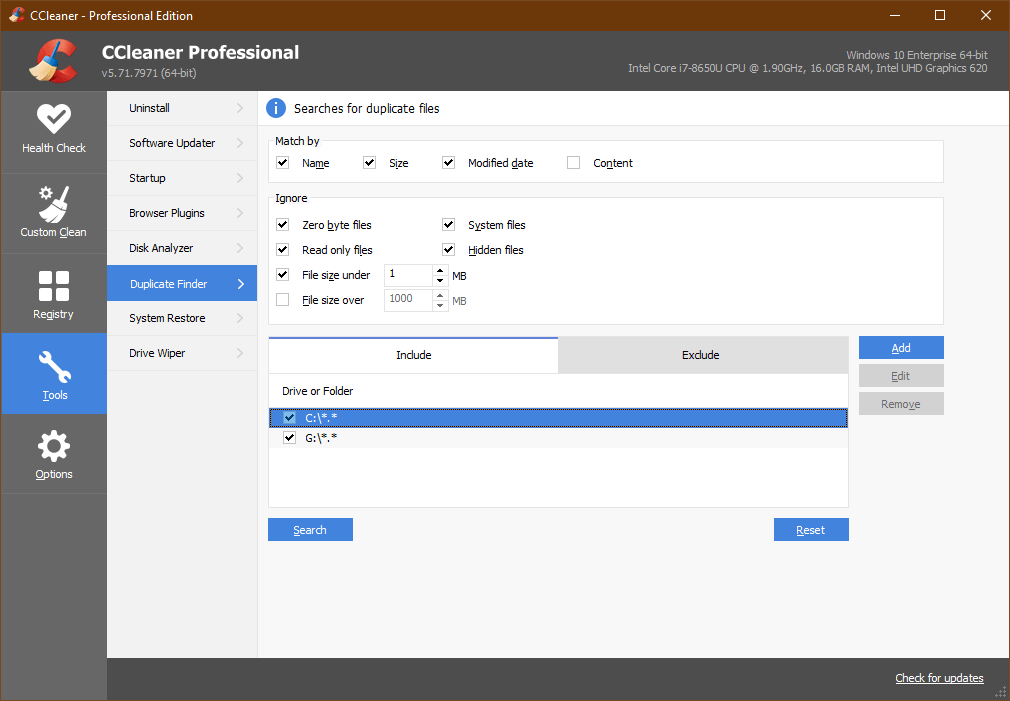

Features:
-
Built-in duplicate finder
-
Filter by file size
-
Ignore system folders
-
Easy interface
2. Auslogics Duplicate File Finder
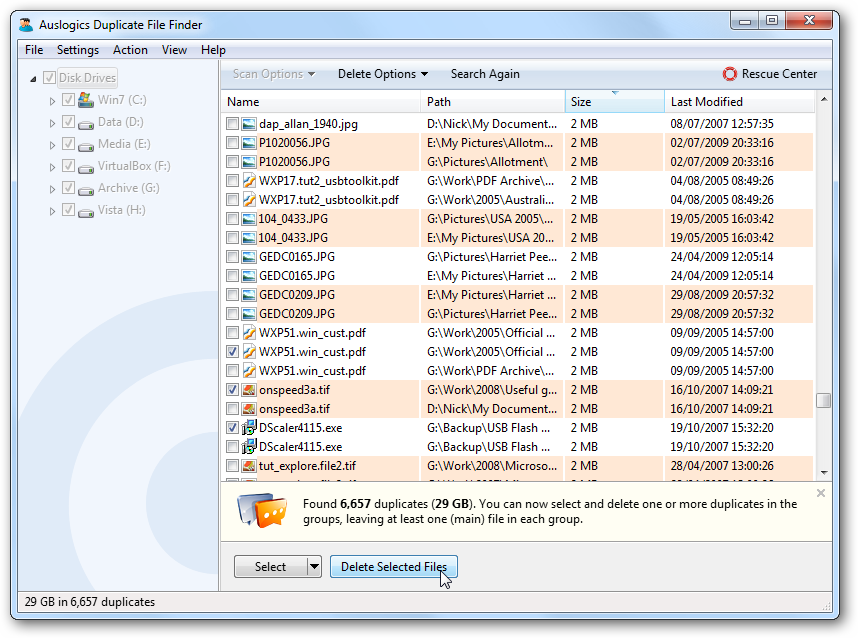
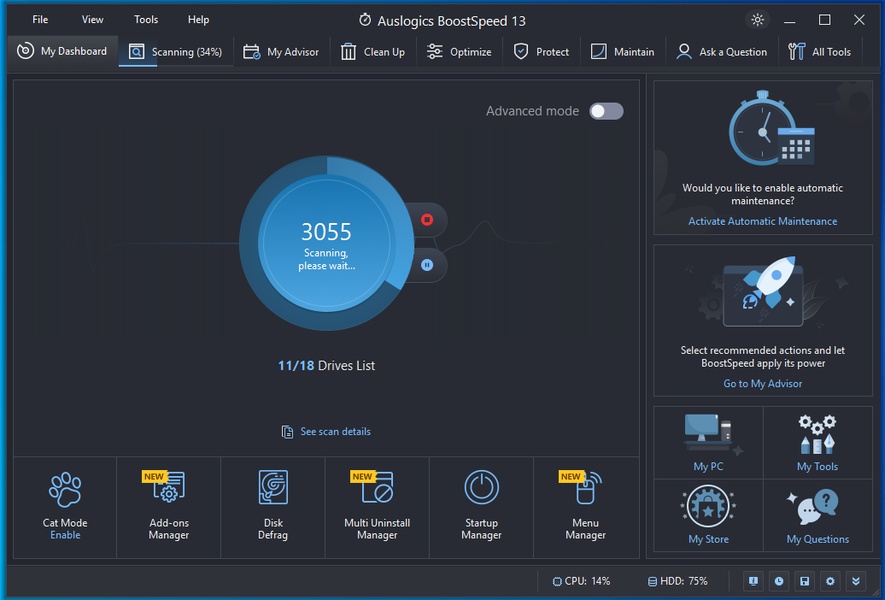

Features:
-
Free
-
Deep file comparison
-
Smart auto-selection
-
Fast scanning
3. Duplicate Cleaner (Free Version)
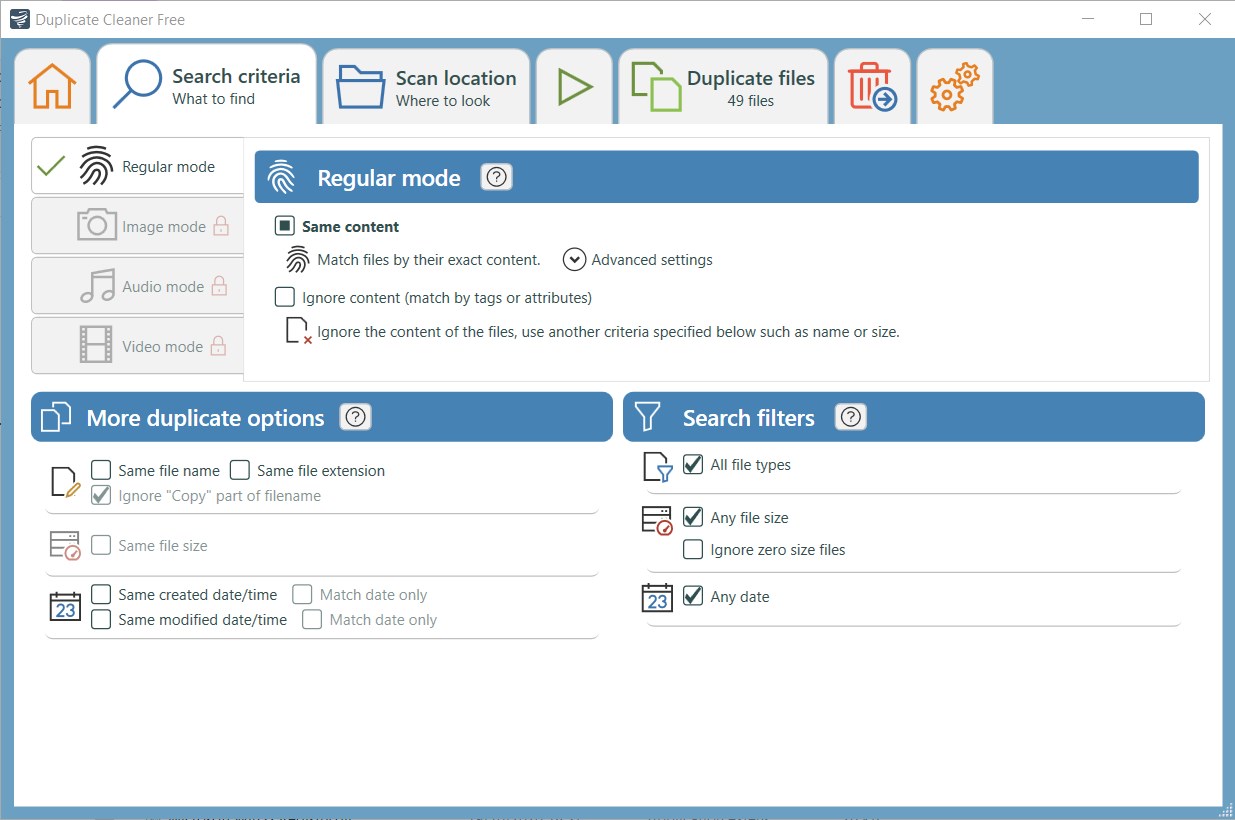
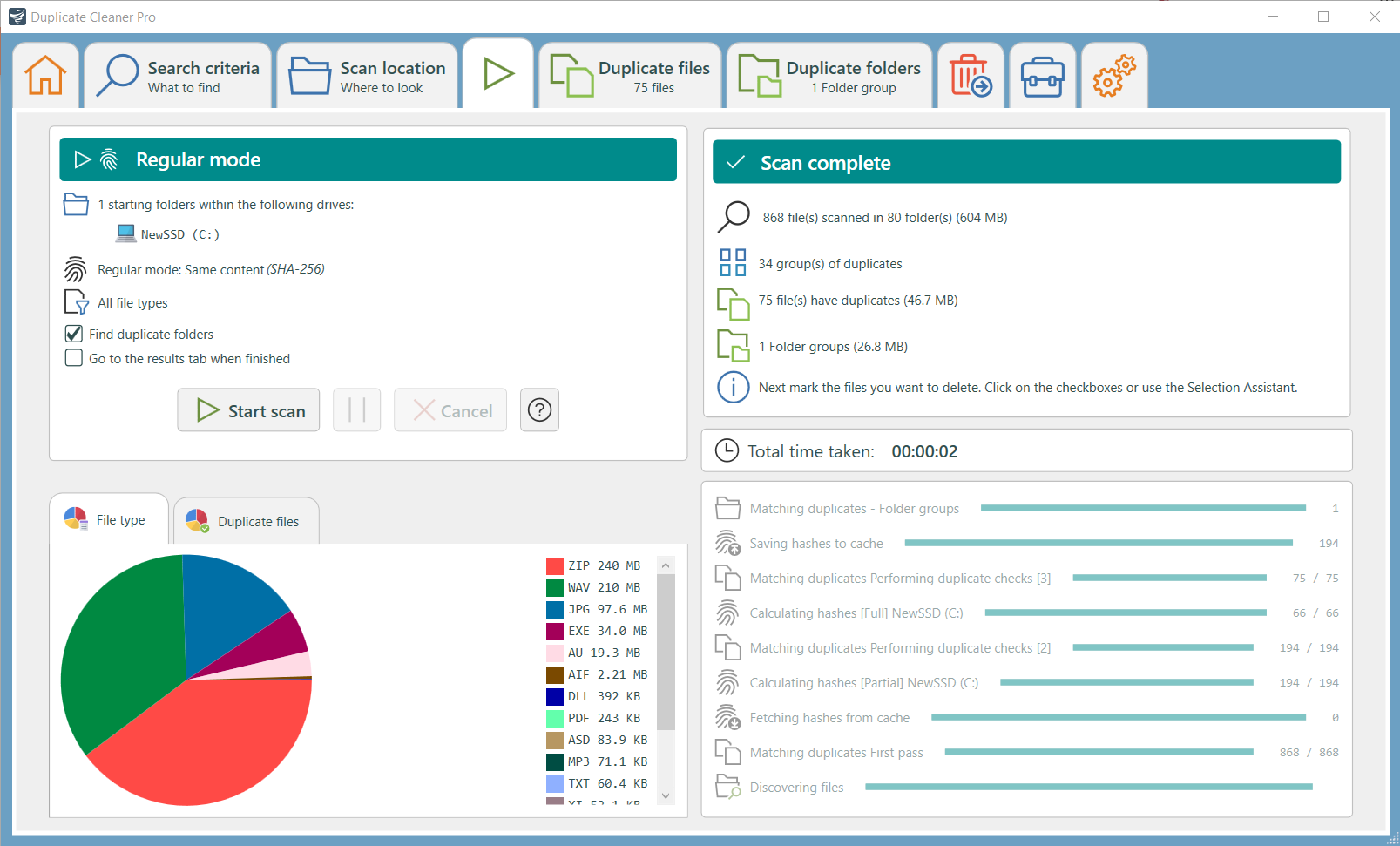
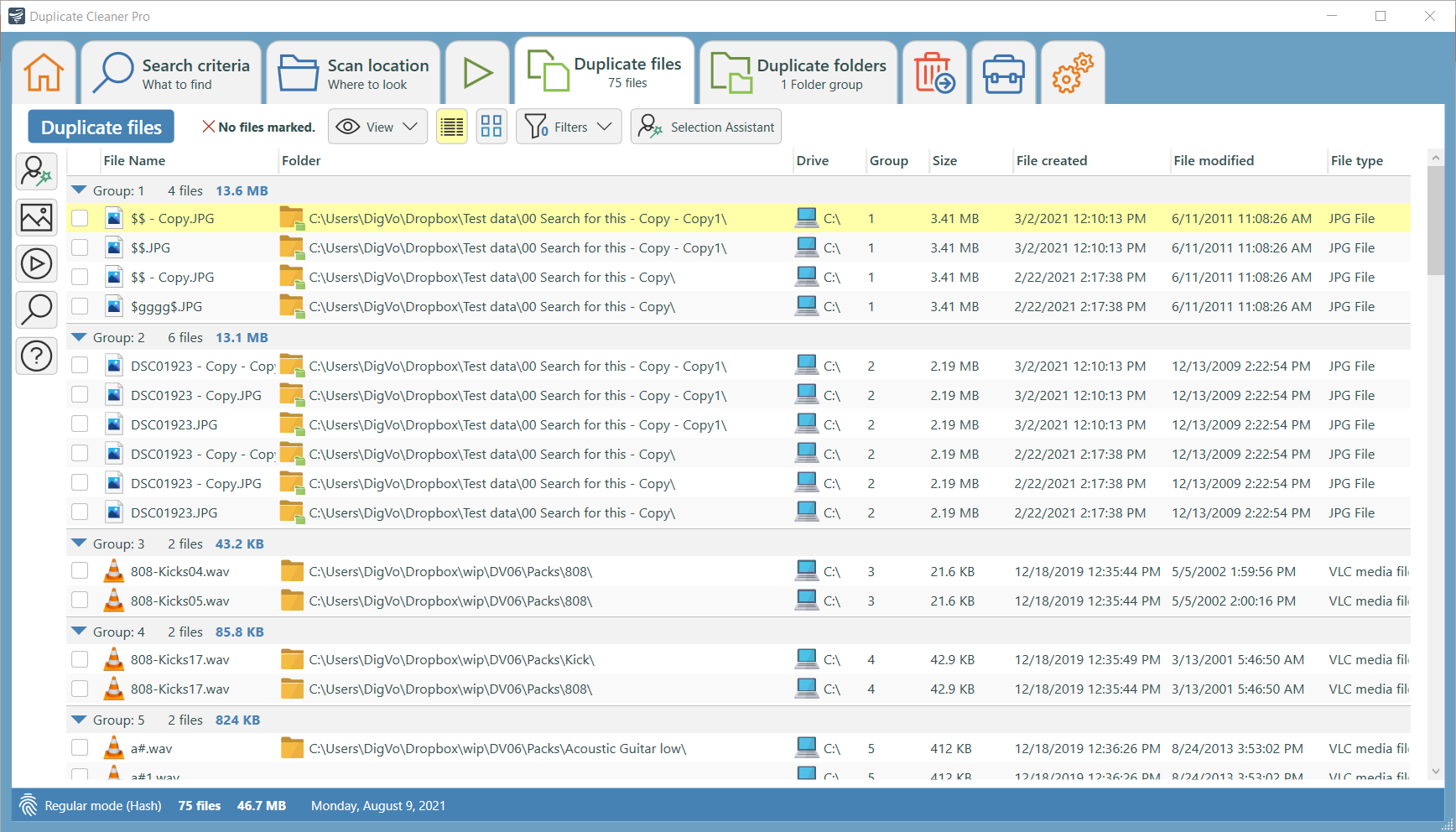
Features:
-
Advanced filtering
-
File hash comparison
-
Preview before deleting
Step-by-Step: How to Find Duplicate Files in Windows 10 Using CCleaner
Let’s walk through the easiest option.
Step 1: Download and Install CCleaner
Download from the official website.
Step 2: Open Tools Section
Click:
Tools > Duplicate Finder
Step 3: Choose Search Criteria
Select:
-
File name
-
File size
-
Modified date
-
Content comparison (recommended)
Step 4: Select Folder Locations
Choose:
-
Documents
-
Pictures
-
Music
-
Entire Drive (optional)
Step 5: Click Search
Wait for scan results.
Step 6: Review Before Deleting
Carefully review files.
Never delete:
-
System files
-
Program files
-
Unknown folders
Select duplicates and click Delete.
Done!
Should You Delete All Duplicate Files?
No.
Always check:
-
Is one a backup?
-
Is it from a program?
-
Is it stored in Windows folder?
Deleting the wrong file can break software.
How to Safely Remove Duplicate Files
Follow these safety rules:
-
Create a restore point
-
Back up important data
-
Use recycle bin (don’t permanently delete first)
-
Avoid deleting system directories
Better safe than sorry.
How to Prevent Duplicate Files in the Future
Here’s how to avoid clutter:
-
Organize files regularly
-
Avoid repeated downloads
-
Manage cloud sync properly
-
Use one backup system
-
Rename files clearly
Think of it like cleaning your room regularly instead of waiting months.
How to Find Duplicate Photos in Windows 10
Photos are the biggest offenders.
Use tools that support:
-
Image preview
-
Similar image detection
-
Metadata comparison
This helps remove identical vacation pictures or screenshots.
How to Find Duplicate Videos
Videos consume the most space.
Use tools that compare:
-
File size
-
Duration
-
Video resolution
-
File hash
Even one duplicate 4K video can waste gigabytes.
What About Duplicate Files in OneDrive?
Cloud sync sometimes creates:
-
“Filename (1)”
-
“Filename – Copy”
To fix:
-
Review OneDrive folder
-
Delete local duplicates
-
Check recycle bin online
Is It Safe to Use Duplicate File Finder Software?
Yes — if you:
-
Download from official sources
-
Avoid cracked versions
-
Double-check selections
Most tools are safe and widely used.
Benefits of Removing Duplicate Files
After cleanup, you’ll notice:
-
Faster searches
-
More storage space
-
Better organization
-
Cleaner backups
-
Improved performance
It feels like decluttering your digital life.
Conclusion: Clean Your PC the Smart Way
Now you know exactly how to find duplicate files in Windows 10 using manual methods, PowerShell, and reliable software tools.
Here’s a quick recap:
-
Use File Explorer for basic manual searches
-
Use PowerShell for advanced detection
-
Use tools like CCleaner for easiest results
-
Always review files before deleting
-
Prevent duplicates with better organization
Take 20 minutes today and scan your system. You might be surprised how much storage you recover.
FAQs
1. Does Windows 10 have a built-in duplicate file finder?
No. You must search manually or use third-party software.
2. Is it safe to delete duplicate files?
Yes, but only after verifying they are not system or program files.
3. How often should I check for duplicates?
Every 3–6 months is ideal.
4. Can duplicate files slow down my computer?
Indirectly, yes — especially if storage becomes full.
5. What is the safest duplicate file finder?
CCleaner and Auslogics are widely trusted options.
Summary – Key Takeaways
-
Duplicate files waste storage space
-
Windows 10 doesn’t have a native duplicate finder
-
Use CCleaner or similar tools for easy cleanup
-
Always review files before deleting
-
Regular maintenance keeps your PC fast and organized
A clean computer is a faster computer. Start scanning today. 🚀
Related Posts:
- How to Search for Duplicate Files in Windows 11: A…
- How to Delete Duplicate Files on Windows 11: A…
- How to Delete Backup Files in Windows 11: A…
- How to Transfer Photos from iPhone to PC Windows 10:…
- How to Get More Disk Space on Windows 11: Tips for…
- How to Automatically Backup Files to an External…
- How to Clear Cache on Windows 10: A Step-by-Step Guide
- How to Backup Laptop Data Windows 11: A Step-by-Step Guide
- How to Free Up Space on Windows 10: Essential Tips…
- How to Find Downloads on Windows 11: A Step-by-Step…
- How to Trim Videos on Windows 11 — A Step-by-Step Guide
- How to See What’s Taking Up Space on PC Windows 11:…
- How to Clear Memory Cache Windows 11: Easy Steps for…
- How to Transfer Photos from iPhone to Laptop Windows…
- How to Backup Windows 10: A Comprehensive Guide to…
- How to Do a Fresh Install of Windows 11: A…
- How to Clear Cache on Laptop Windows 11: A…
- How to Back Up Files on Windows 11: A Step-by-Step Guide
- How to Import Photos from iPhone to PC Windows 11: A…
- How to Delete Temporary Internet Files on Windows…