
Want to give your desktop a little life? If you’re tired of static backgrounds and want something dynamic, learning how to set GIF as wallpaper Windows 10 can instantly transform your screen. Whether it’s an animated meme, a calming loop of ocean waves, or your favorite gaming clip, a GIF wallpaper adds personality and motion to your workspace.
In this complete, beginner-friendly guide, we’ll walk through everything you need to know about setting a GIF as your desktop background in Windows 10. We’ll cover safe tools, step-by-step instructions, performance tips, and troubleshooting advice — all in clear, simple language.
Let’s bring your desktop to life.
Why Set a GIF as Wallpaper in Windows 10?
Before we dive into the how-to steps, let’s quickly answer: Why would you even want an animated wallpaper?
Here’s why many Windows 10 users love it:
-
🎨 Adds personality and creativity
-
🎮 Perfect for gamers and streamers
-
🌊 Great for calming animated loops
-
🖥 Makes your desktop visually engaging
-
📹 Showcases short animated art or motion graphics
Think of your desktop as your digital living room. Why keep it blank when you can decorate it?
Can You Set a GIF as Wallpaper Natively in Windows 10?
Here’s the short answer: No.
Windows 10 does not support GIF wallpapers by default. You can only set:
-
JPEG
-
PNG
-
BMP
-
Static images
So if you try to right-click a GIF and select “Set as desktop background,” Windows will only display a static frame.
But don’t worry — we’ll use trusted third-party tools to make it work safely and smoothly.
Best Tools to Set GIF as Wallpaper Windows 10
To successfully set a GIF as wallpaper in Windows 10, you’ll need special software. Here are the most reliable options:
1. Lively Wallpaper (Free & Open Source)
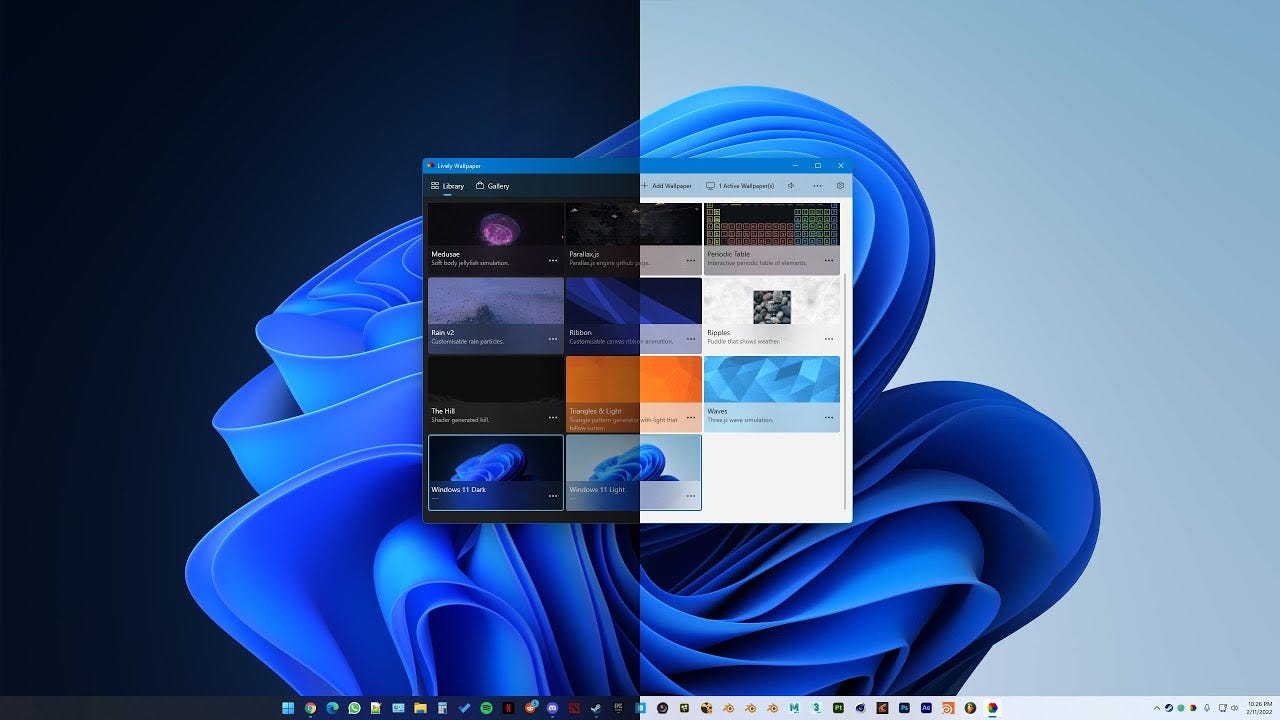
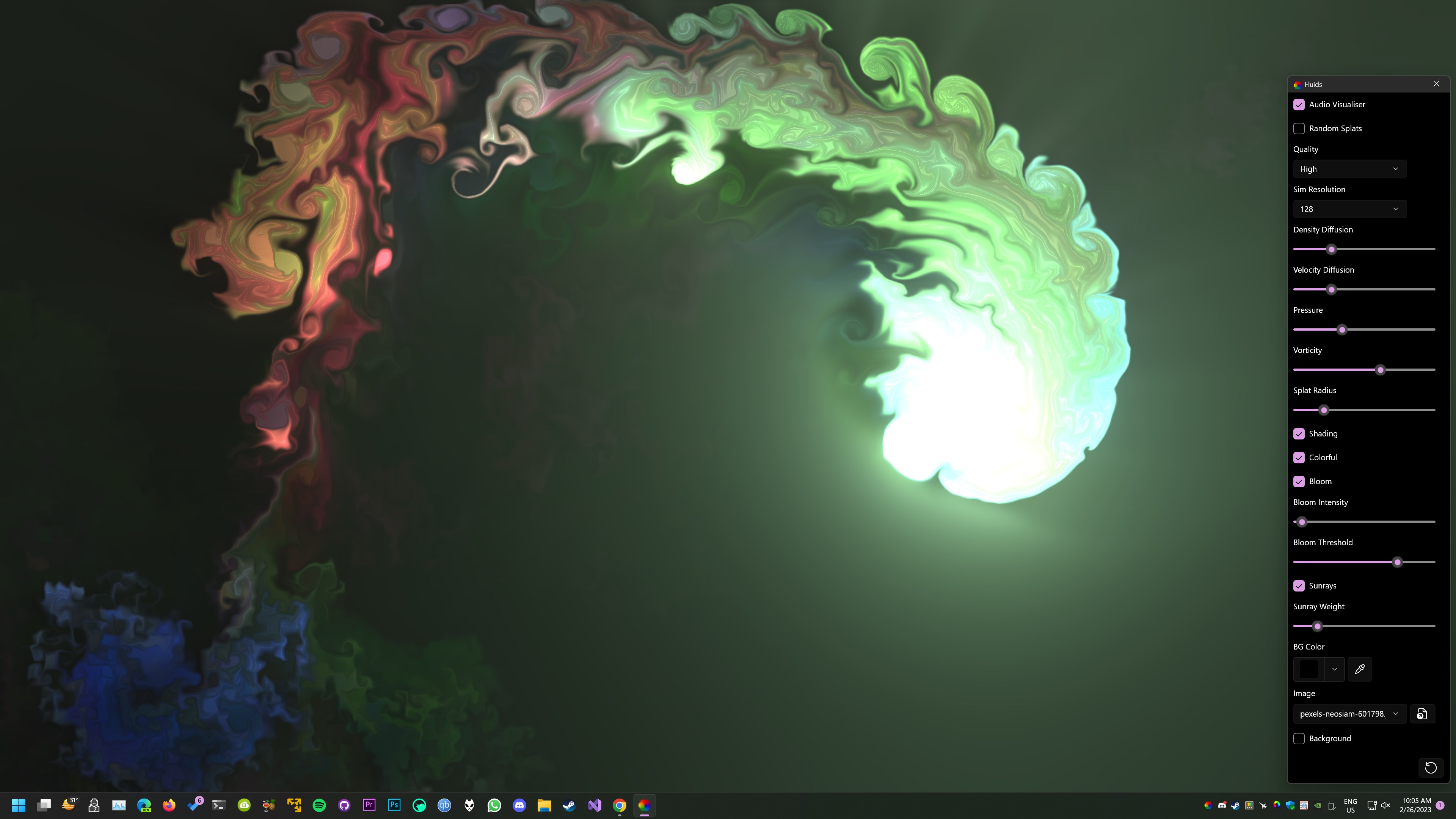

Why choose it?
-
Completely free
-
Lightweight
-
Supports GIF, MP4, WebM
-
Automatically pauses animations when gaming
Best for: Most users
2. Wallpaper Engine (Paid – Steam)
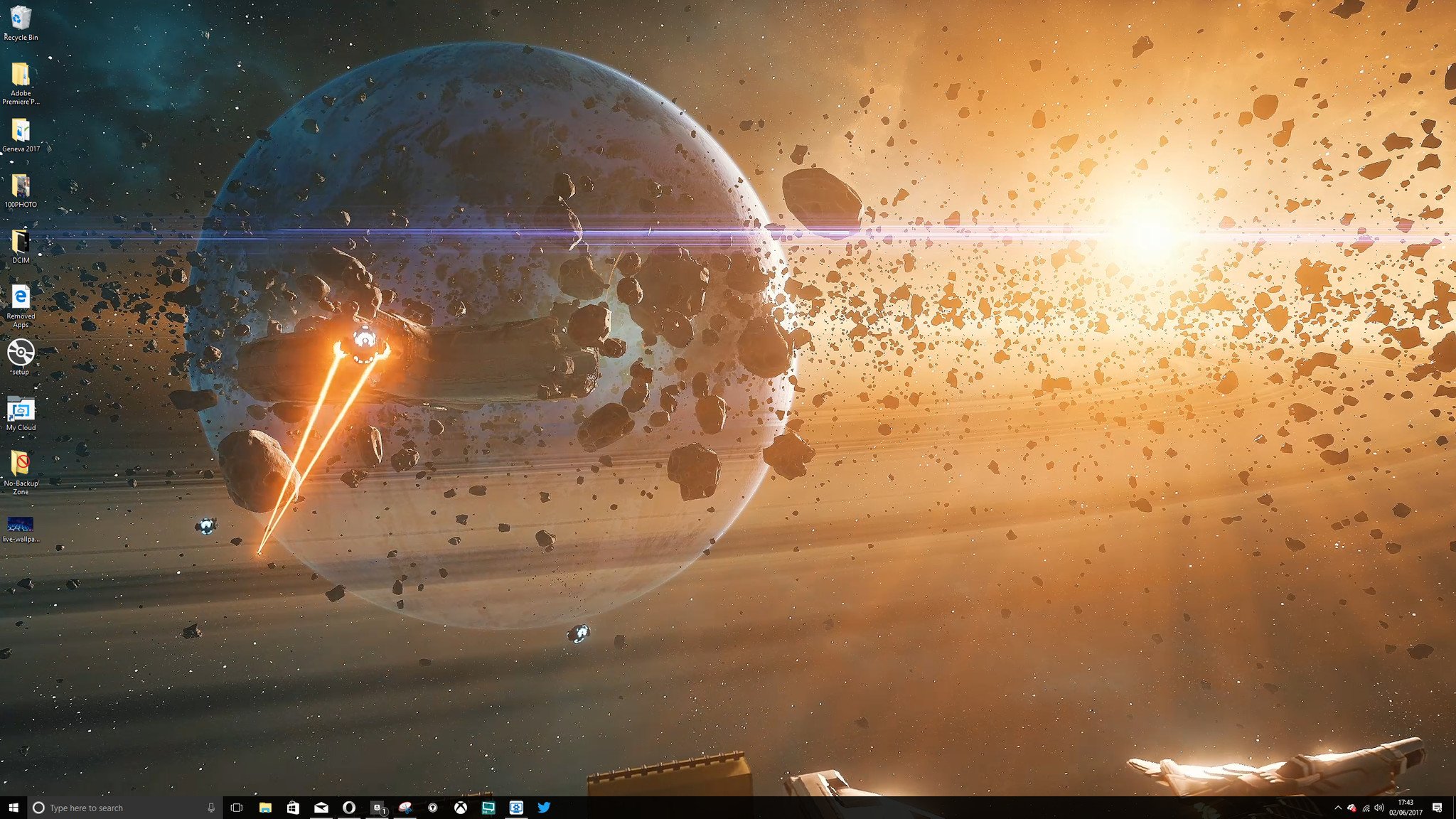
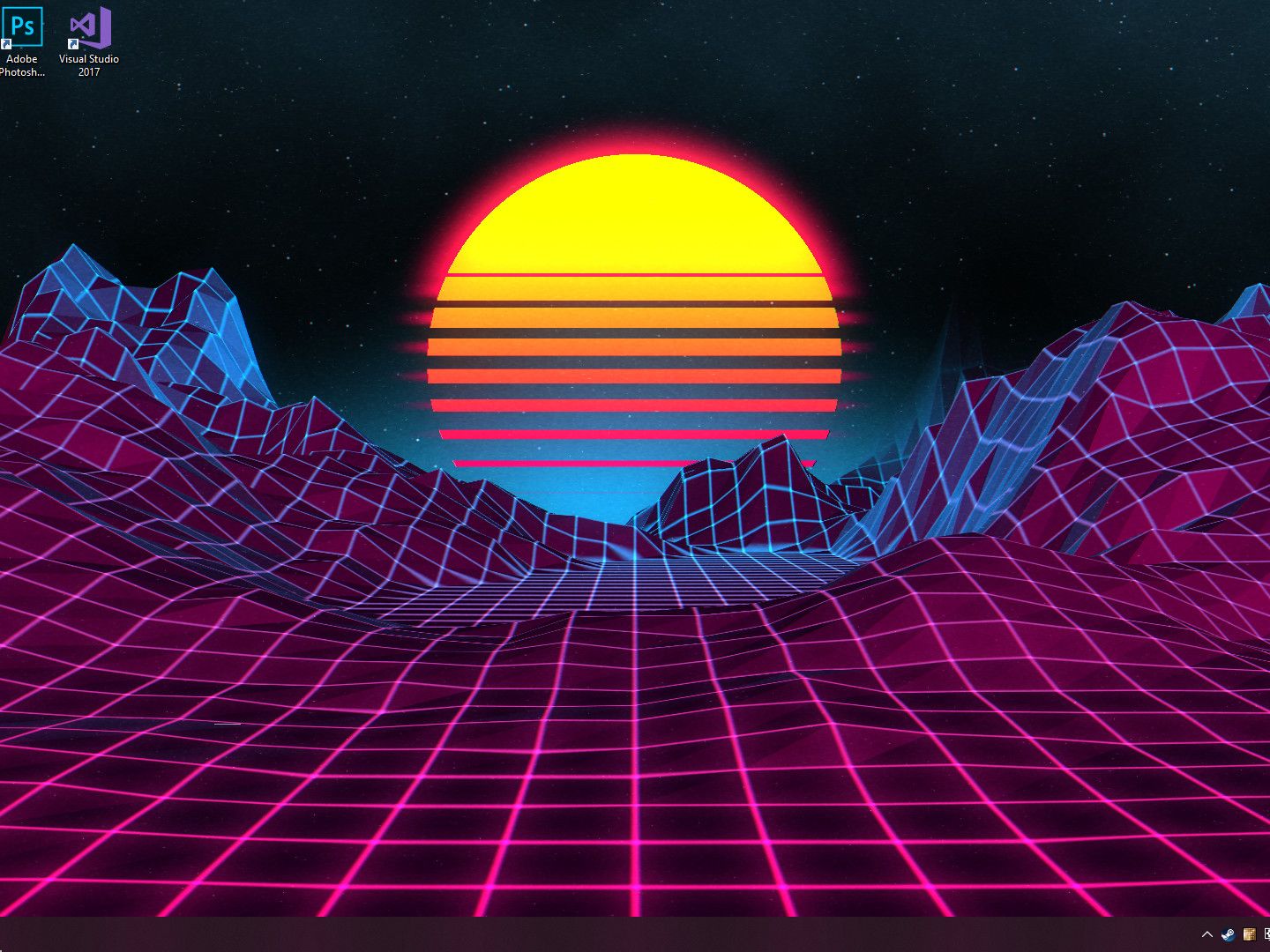
Why choose it?
-
Huge animated wallpaper library
-
Advanced customization
-
Strong community support
Best for: Gamers and advanced users
3. BioniX Wallpaper Changer
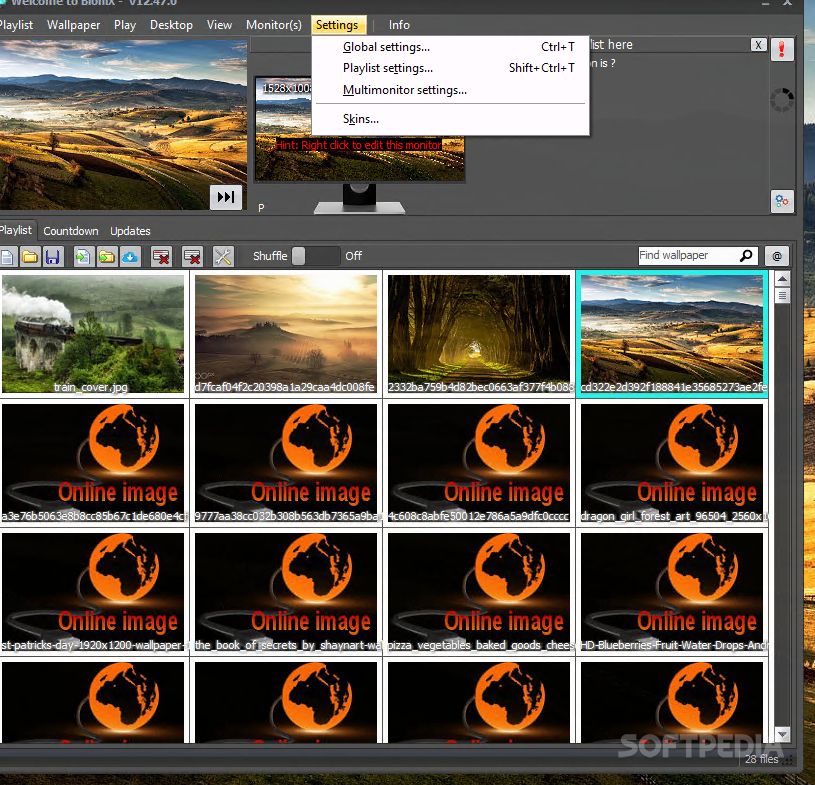

Why choose it?
-
Supports GIF animations
-
More technical controls
Best for: Power users
How to Set GIF as Wallpaper Windows 10 Using Lively Wallpaper (Step-by-Step)
Let’s go step-by-step using the easiest and safest method.
Step 1: Download Lively Wallpaper
-
Open Microsoft Store.
-
Search for Lively Wallpaper.
-
Click Install.
Alternatively, download from the official website.
Step 2: Launch the Application
After installation:
-
Open Lively Wallpaper.
-
You’ll see a wallpaper library screen.
Step 3: Add Your GIF
-
Click the + Add Wallpaper button.
-
Select your GIF file.
-
Confirm and import.
Lively automatically converts and optimizes it.
Step 4: Apply the GIF
-
Click on your newly added GIF.
-
It instantly becomes your animated desktop background.
Done! 🎉
How to Set GIF as Wallpaper Windows 10 Using Wallpaper Engine
If you want more advanced features:
-
Install Wallpaper Engine via Steam.
-
Launch it.
-
Click Create Wallpaper.
-
Choose your GIF file.
-
Adjust playback settings.
-
Click Apply.
How to Convert GIF to Video for Better Performance
Here’s a pro tip: Sometimes GIF files are heavy and laggy.
You can:
-
Convert GIF to MP4 using free tools
-
Use MP4 format in Lively
-
Reduce CPU usage
Video formats run smoother than raw GIF files.
Will Animated Wallpapers Slow Down Your PC?
Good question.
It depends on:
-
Your GPU performance
-
RAM available
-
Wallpaper resolution
-
Software optimization
If you have:
-
8GB RAM or more
-
Dedicated graphics card
You’ll be fine.
Lively even pauses animations during full-screen gaming to save resources.
How to Reduce CPU Usage
If performance drops:
-
Lower wallpaper resolution
-
Convert GIF to MP4
-
Reduce frame rate
-
Close background apps
-
Disable animations while gaming
Think of it like running a video in the background — manage it wisely.
How to Remove GIF Wallpaper and Restore Static Background
Want to go back?
-
Open Lively Wallpaper.
-
Right-click wallpaper.
-
Select Close Wallpaper.
-
Go to Windows Settings > Personalization > Background.
-
Choose a static image.
Simple.
Is It Safe to Use Third-Party Wallpaper Apps?
Yes — if you:
-
Download from Microsoft Store
-
Use official websites
-
Avoid cracked versions
Stick to trusted software like Lively or Wallpaper Engine.
Why Does Windows 10 Not Support GIF Wallpapers Natively?
Windows 10 was designed for performance stability.
Animated backgrounds:
-
Consume system resources
-
Increase GPU usage
-
Reduce battery life on laptops
Microsoft chose efficiency over animation.
How to Set Different GIF Wallpapers on Multiple Monitors
Using Lively:
-
Open settings.
-
Enable multi-monitor mode.
-
Assign different GIF to each display.
Perfect for dual-screen setups.
Troubleshooting Common Issues
GIF Not Animating?
-
Check if app is running
-
Re-import file
-
Convert to MP4
Wallpaper Disappears After Restart?
-
Enable startup option in Lively settings
High CPU Usage?
-
Lower resolution
-
Use video format
-
Update graphics drivers
Advanced Customization Options
With tools like Wallpaper Engine, you can:
-
Add sound
-
Add mouse interaction
-
Create custom animated effects
-
Use web-based wallpapers
It’s like turning your desktop into a mini digital stage.
Benefits of Animated Desktop Backgrounds
-
Boost creativity
-
Personal expression
-
Makes work less boring
-
Impressive streaming setup
-
Unique PC identity
Your desktop doesn’t have to be boring.
Conclusion: Bring Your Desktop to Life Today
Now you know exactly how to set GIF as wallpaper Windows 10. While Windows doesn’t support animated backgrounds natively, tools like Lively Wallpaper and Wallpaper Engine make the process easy and safe.
Here’s a quick recap:
-
Windows 10 doesn’t support GIF wallpaper by default
-
Use Lively Wallpaper (free) for best results
-
Convert GIF to MP4 for smoother performance
-
Adjust settings to reduce CPU usage
-
Always download software from trusted sources
Your desktop is something you see every day. Why not make it exciting?
Go ahead — try it now and transform your Windows 10 experience.
FAQs
1. Can I set a GIF as wallpaper without software?
No. Windows 10 does not support animated GIF wallpapers natively.
2. Is Lively Wallpaper free?
Yes, it’s completely free and open-source.
3. Does animated wallpaper affect gaming?
Minimal impact if optimized properly. Lively pauses animations during gaming.
4. Can I use MP4 instead of GIF?
Yes, and it’s recommended for better performance.
5. Is Wallpaper Engine worth it?
If you want advanced features and a huge library, yes.
Summary – Key Takeaways
-
Windows 10 requires third-party software for GIF wallpapers
-
Lively Wallpaper is the best free option
-
MP4 format improves performance
-
Animated wallpapers are safe when installed properly
-
You can customize multi-monitor setups
Your desktop deserves personality. Now you know how to give it one. 🚀